DOCUMENTATION · VERSION 1.1
Venus School Portal
The complete RTL school management script — installation, administration, teacher and student guides, customization and troubleshooting.
Framework
Laravel 12 · PHP 8.2+
Interface
Persian · RTL · Dark/Light
Roles
Admin · Teacher · Counselor · Student · Parent
Contents
Introduction
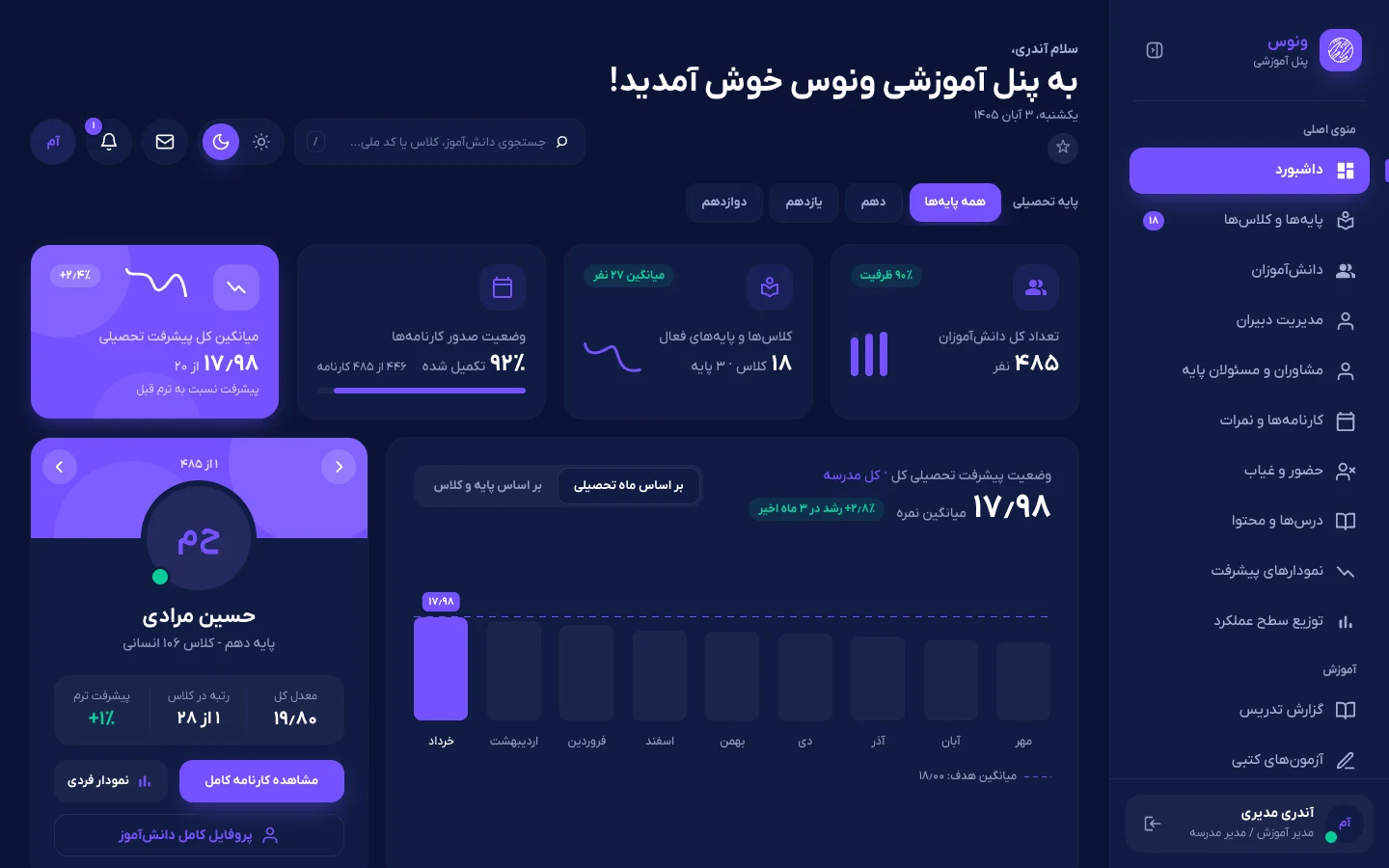
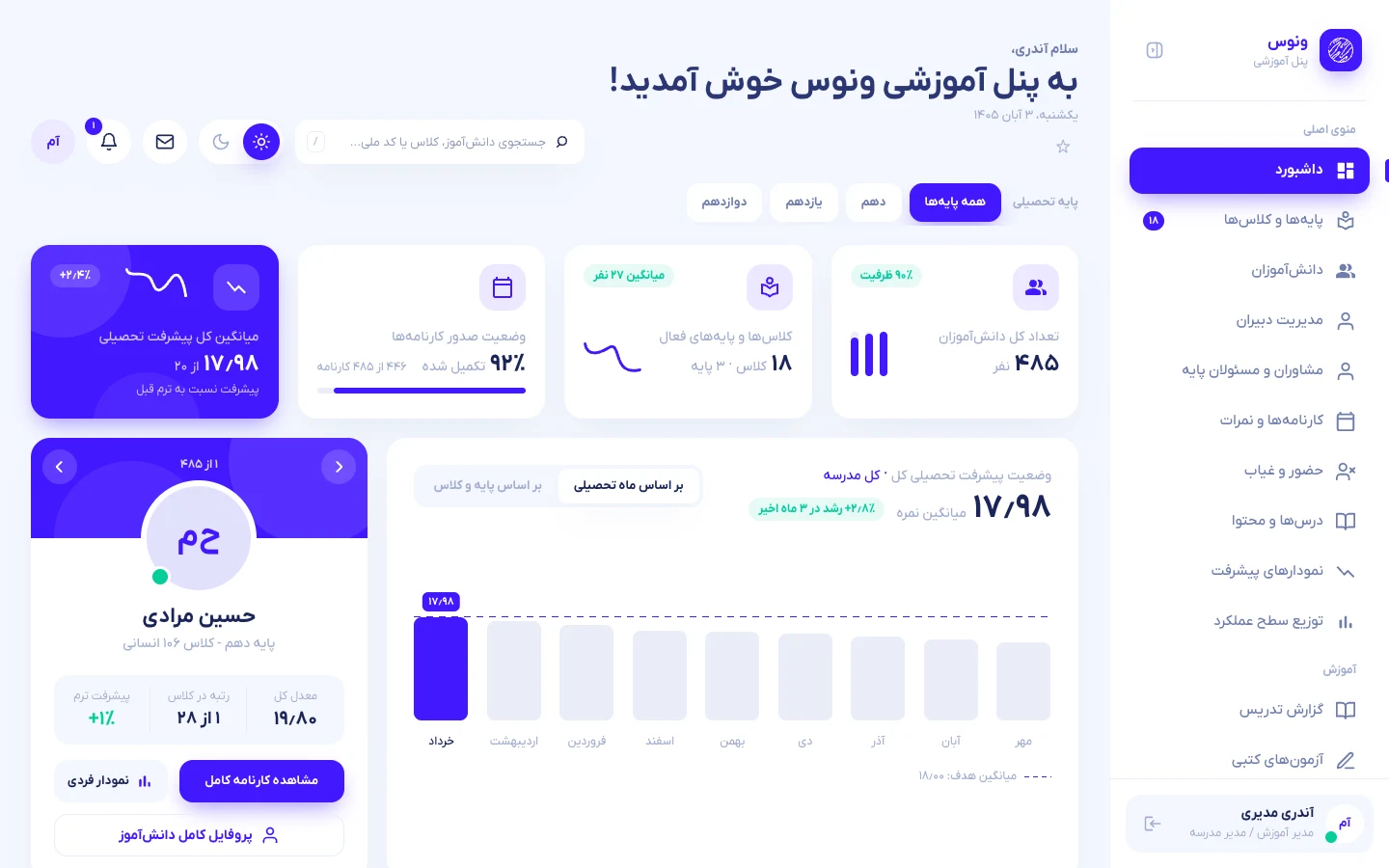
Venus School Portal is a complete school management system for Persian-speaking schools. It gives principals, teachers and students one consistent, app-like workspace: grades and report cards, attendance, online exams, assignments, timetables, a library, counseling, polls, messaging and rich progress analytics — all in a right-to-left interface with Jalali (Shamsi) dates, Persian digits, a dark theme and a mobile layout that feels like a native app.
Feature overview
| Area | What you get |
|---|---|
| Administration | Classes, weekly timetable builder with clash detection, teachers (several subjects each), students, grade levels, official report cards with publish control, announcements, discipline records. |
| Teaching | Gradebook with several quizzes per month, midterm and final; attendance by scheduled period; assignments, learning content, online classes and online exams (auto-graded + manual grading). |
| Learning | Personal dashboard, course pages, marks, monthly and official report cards, charts, library, counseling, study pattern, polls, calendar, messages, notifications. |
| Analytics | Progress by month, class and grade; performance-level distribution; ranked student cards; at-risk lists — all scoped to the signed-in role. |
| Parents & SMS | Parent portal (progress charts, report cards, discipline, absences, invitations), pattern-based SMS through eight Iranian gateways, per-staff SMS permissions and a three-level “what parents see” matrix. |
| Counselors | Counselor / grade-lead role limited to the grades they lead, with powers (register students, reset parent passwords, set parent access, send SMS) granted one by one by the admin. |
| Experience | RTL-first, IRANYekanX font, dark/light themes, collapsible sidebar, phone shell with bottom tab bar, print-ready report cards. |
Roles and access
| Role | Sees | Can do |
|---|---|---|
| Admin | The whole school. | Everything: manage classes, timetables, teachers, students, report cards; grade, take attendance, record discipline. |
| Teacher | Only the classes and subjects assigned by the admin. | Grade, take attendance, manage course content, assignments, exams and online classes for their own subjects; open profiles of their own students. |
| Counselor | Only the grades they lead (one counselor may lead several). | Analytics and discipline for those grades. Everything else is switched on per person by the admin: register students and parents, reset parent passwords, decide parent access, send selected SMS. |
| Student | Only their own data and their own class. | Study, submit assignments, take exams, view marks and report cards, message staff. |
| Parent | Their children only, read-only, and only the sections the school opened. | Progress and regression charts, report cards, marks, discipline, absences, calendar, invitations; message the school. |
Requirements
| Item | Requirement |
|---|---|
| PHP | 8.2 or newer (tested on 8.4 and 8.5) |
| PHP extensions | gd (captcha), mbstring, fileinfo, openssl, ctype, json, tokenizer, xml, and pdo_sqlite or pdo_mysql |
| Database | SQLite (default, nothing to create) or MySQL / MariaDB |
| Web server | Apache (with mod_rewrite), LiteSpeed or Nginx |
| Disk space | About 60 MB for the application plus your uploads |
| Node.js | Not required to run the script. Only needed if you want to change the design and rebuild assets (Node 20+). |
| Cron / queue worker | Not required |
Installation
The package contains a ready-to-run application: dependencies (vendor) and compiled assets (public/build) are already included. Pick the method that matches your hosting.
A. Web installer (no command line)
Recommended for shared hosting. It needs only a browser.
Upload and extract
Upload venus-script.zip to the folder of your domain or subdomain (for example public_html or demo.example.com) and extract it there. After extraction you should see artisan, app, public and vendor directly in that folder.
Choose PHP 8.2+ and enable extensions
In cPanel open Select PHP Version (or MultiPHP Manager), choose PHP 8.2 or newer and make sure gd, mbstring, fileinfo and pdo_sqlite are ticked.
Open the installer
Visit https://your-domain/install.php. The page lists ten server checks; every line must be green. Fill in the school name, site address, database (SQLite is the default) and the administrator’s name, national code and password.
Sign in and delete the installer
Press Install, then open /login and sign in with the national code and password you chose. Finally delete public/install.php. It refuses to run again (it writes storage/installed.lock), but removing it is good practice.
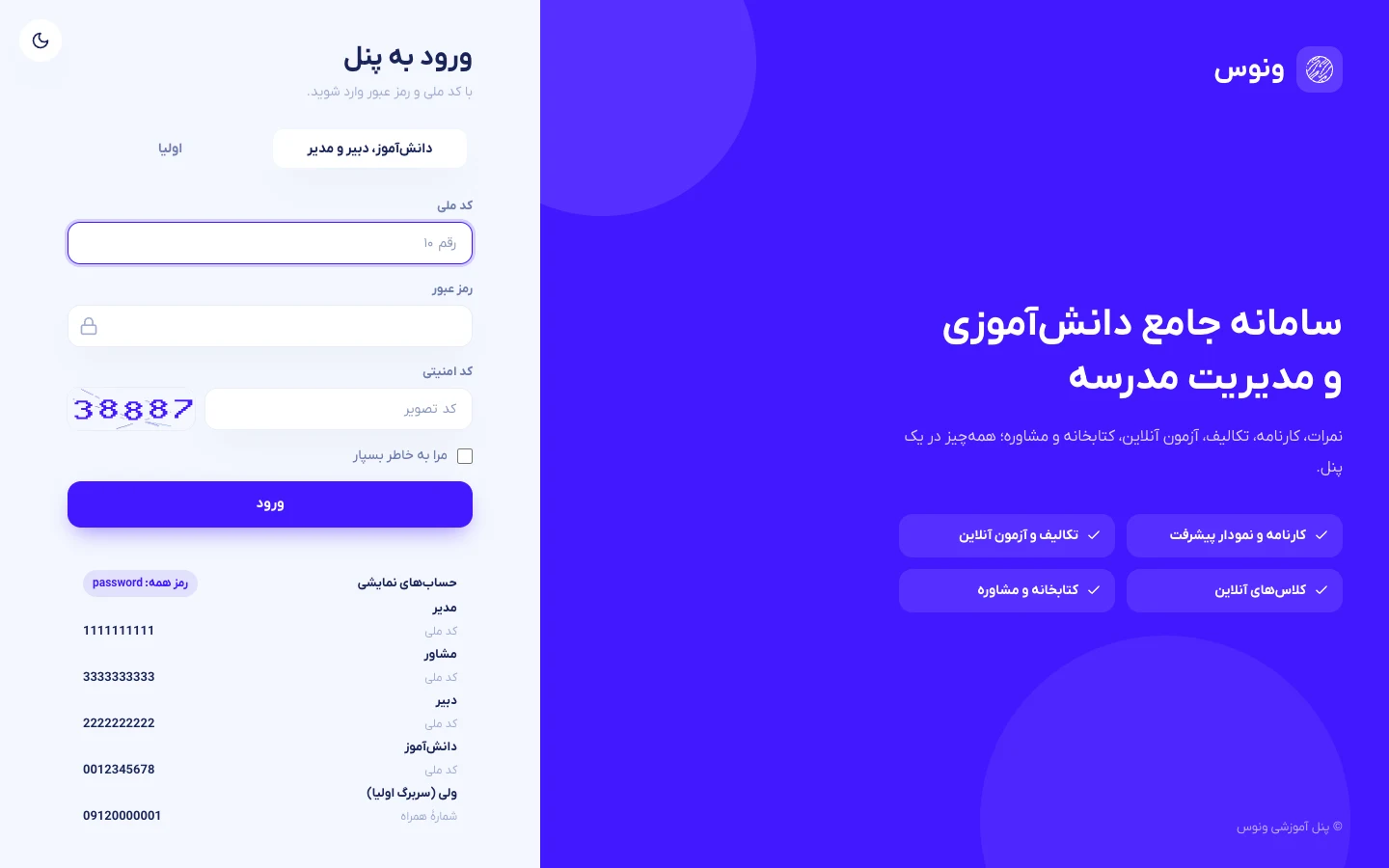
https://khoshgu.ir/venus (a fully populated school: 485 students, 18 classes, about 44,000 grades). Demo logins: admin 1111111111, teacher 2222222222, counselor 3333333333, student 0012345678 — password password. Parent (second tab of the login form): student code 0012345678 + mobile 09120000001 + password password.storage/installed.lock, .env and database/database.sqlite and run the installer again.The root .htaccess forwards every request to the public folder and blocks access to .env, vendor, storage and the database, so you do not need to change the document root on Apache/LiteSpeed. If your host lets you point the domain at public directly, that is slightly faster and equally supported.
B. Command-line installer
# inside the project folder
cp .env.example .env
php artisan key:generate
# clean school with your own administrator (asks for name, national code, password)
php artisan venus:install
# ...or the full demo school
php artisan venus:install --demo
# non-interactive
php artisan venus:install --first-name=Admin --last-name=School --codemeli=1234567890 --password=Str0ng-pass
The command creates the database file when you use SQLite, runs the migrations, creates the three grade levels (10, 11, 12) and your administrator. With --demo it seeds the demonstration data instead.
C. VPS / dedicated server (Nginx)
Point the server block at the public directory:
server {
    listen 80;
    server_name school.example.com;
    root /var/www/venus/public;
    index index.php;

    location / { try_files $uri $uri/ /index.php?$query_string; }
    location ~ \.php$ {
        include snippets/fastcgi-php.conf;
        fastcgi_pass unix:/run/php/php8.3-fpm.sock;
    }
    location ~ /\.(?!well-known).* { deny all; }
    client_max_body_size 60M;     # matches the 50 MB content upload limit
}sudo chown -R www-data:www-data storage bootstrap/cache database sudo chmod -R 775 storage bootstrap/cache database php artisan venus:install
D. Local development
composer install
npm install
cp .env.example .env && php artisan key:generate
php artisan venus:install --demo
npm run build          # or: npm run dev
php artisan serve      # http://127.0.0.1:8000
APP_ENV=local and APP_DEBUG=true only on your own machine. Production must run with APP_DEBUG=false.Using MySQL / MariaDB
Create an empty database and user in your control panel, then either choose MySQL in the web installer, or edit .env:
DB_CONNECTION=mysql
DB_HOST=localhost
DB_PORT=3306
DB_DATABASE=venus
DB_USERNAME=venus_user
DB_PASSWORD=your-password
First steps after installing
A new school needs five things before teachers and students can work. Do them in this order:
Create the classes
Open Grades & classes, fill in Add a new class (grade level, name, field, capacity). Keep Copy subjects ticked to start from the subject list of another class in the same grade.
Add the teachers
Open Manage teachers and create each teacher with a national code and a temporary password. Then assign subjects and classes (see Teachers).
Build the weekly timetable
Open each class (Edit & timetable) and place subjects into periods. Teachers will see exactly these periods in attendance.
Add the students
Inside a class page, use Add student. Each student gets a national code and password and is placed in that class.
Create report cards
Open Report cards & grades, choose a class and create the official report cards for the year (for example one per month). Publish them when ready.
Quick start for every role (your first 10 minutes)
New to Venus? Read only this chapter and do the steps for your own role, in order. Each step is short; the later chapters go deeper. The interface itself is in Persian, so menu names are given in English followed by the Persian label.
If you are the administrator
Sign in and change your password
Use the national code and password you chose during installation. Click your picture (top corner) → Account settings → Password. Use at least 8 characters.
Fill in the school profile
Open School profile (اطلاعات مدرسه): name, principal, phone, address, academic year and logo. They appear in the menu, the page titles, the official report card and the {school} SMS variable.
Create classes
Grades and classes (پایهها و کلاسها) → Add class. Pick the grade and type a class name such as 101.
Add teachers
Teachers (مدیریت دبیران) → add each one with national code and a temporary password, then assign their subjects and classes.
Add students
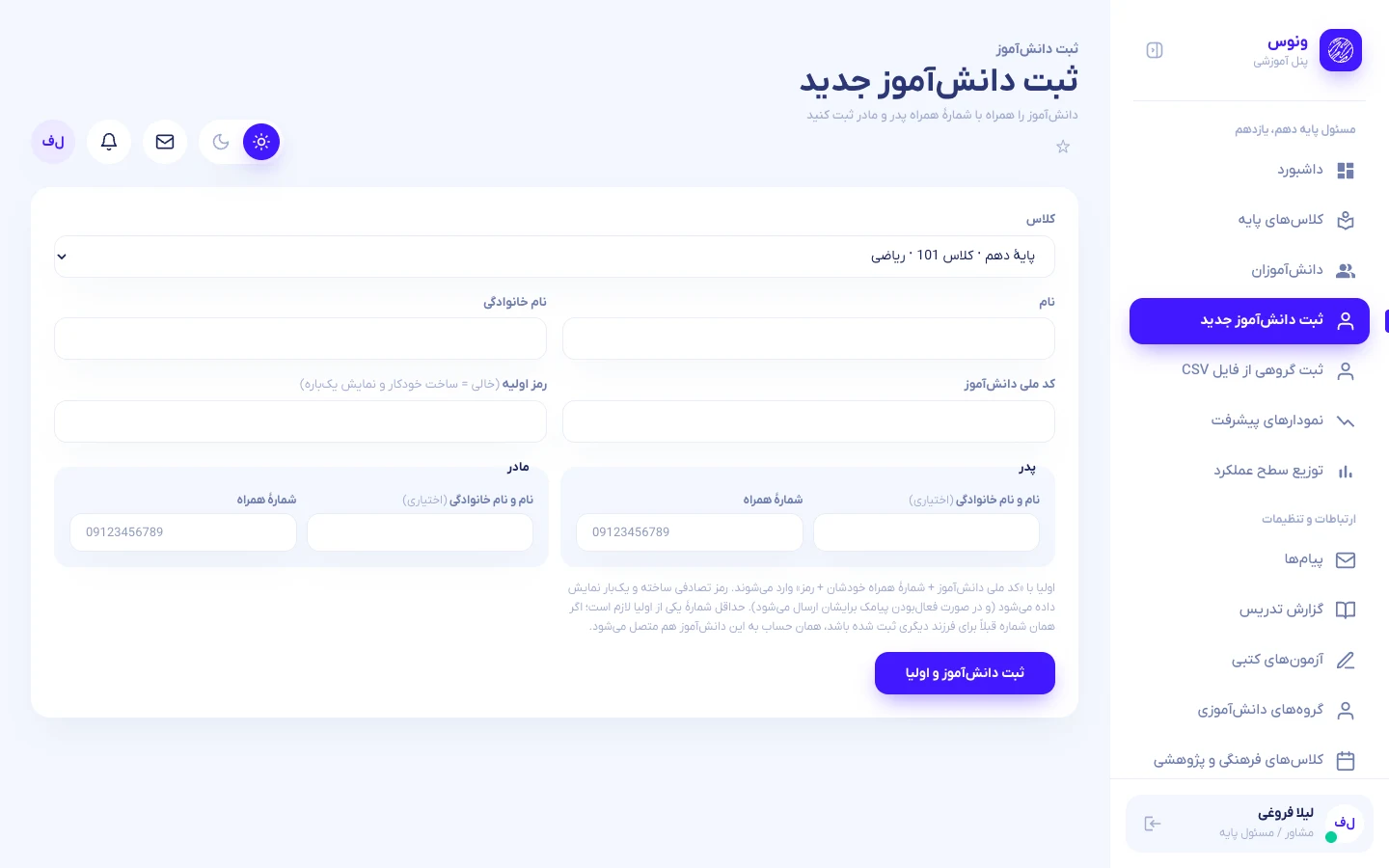
A few: open a class → Add student. The whole school: Bulk import from CSV (see Bulk import and export).
Connect SMS (optional, can wait)
Follow SMS setup step by step. Everything else works without SMS; parents simply do not get text messages.
If you are a teacher
Sign in
With the national code and password from the administrator. The dashboard shows only your classes and subjects.
Enter marks
Enter marks (ثبت نمرات) → choose class and subject → type each student's mark (0–20, decimals such as 17.5 are fine) → save.
Take attendance
Attendance (حضور و غیاب) → class, subject, date → mark present / absent / late → save.
Create your first online exam
See Online exams, step by step — about five minutes.
If you are a counselor or grade lead
See your grades
You see only the grades the administrator assigned. Every other permission (register students, reset parent passwords, SMS, appointments) is switched on separately; a missing button means you do not have that permission.
Student file
Students → search a name → the full file with tabs for marks, attendance, discipline, counseling and parents.
Schedule a counseling appointment
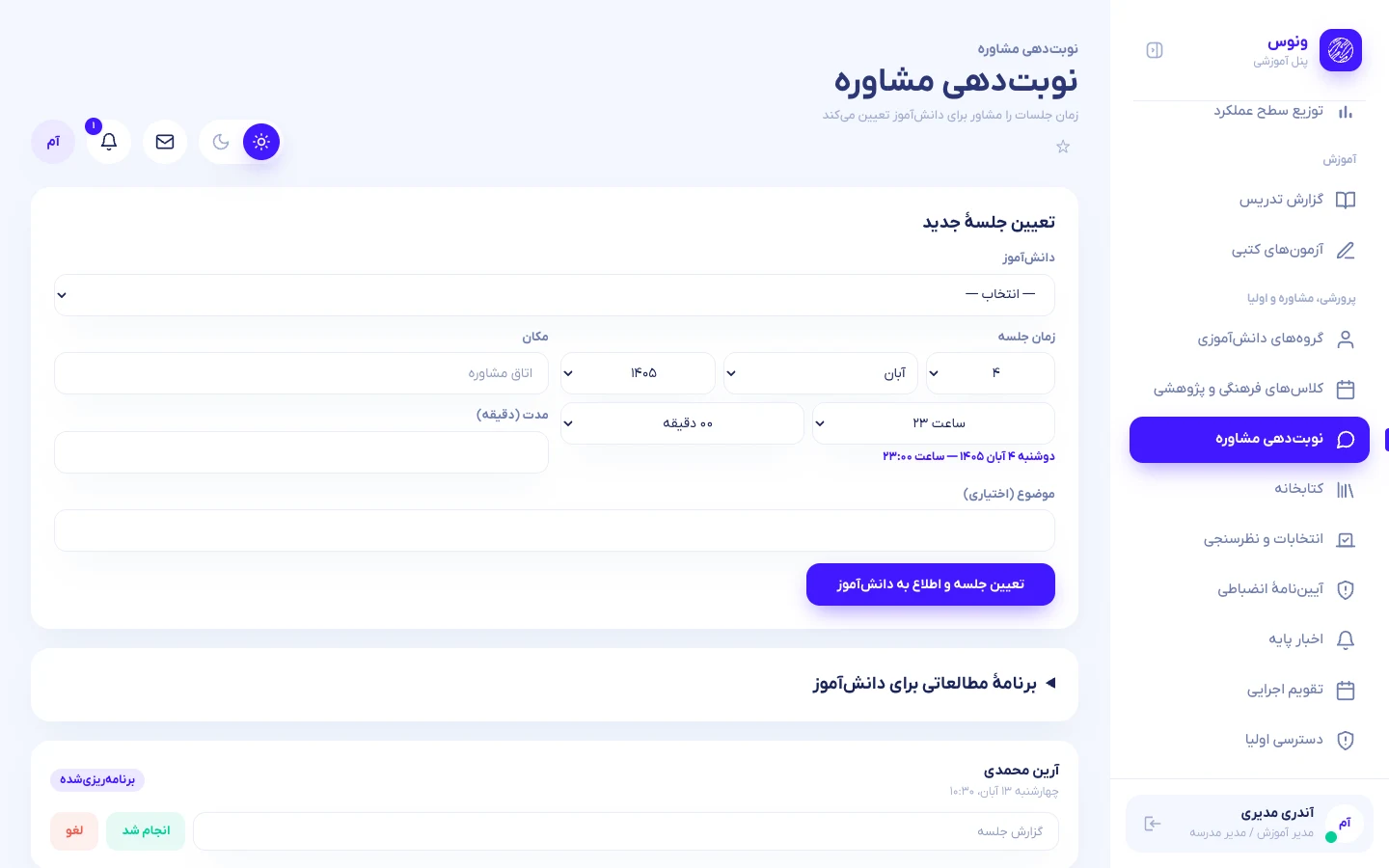
Counseling appointments (نوبتدهی مشاوره) → student, date, time and topic. Students never book themselves; they only see appointments you set.
If you are a student
Sign in
Your national code and the password the school gave you. Change it in Settings after the first login.
See what is due
The dashboard lists upcoming assignments and exams; click one to open it.
Take an online exam
Online exam (آزمون آنلاین) → an open exam → answer → Final submit. The timer at the top shows the remaining time; when it reaches zero your answers are submitted automatically.
If you are a parent
Get your login details
When your child is registered the school creates an 8-digit password and, if SMS is on, texts it to you. If it did not arrive, ask the office or counselor for a new password.
Sign in
On the login page choose the Parents (اولیا) tab and enter your own mobile number (the one registered at school) and the password. With several children you switch between them inside.
Read “Things you should know”
The most important items (a falling mark, absence, an invitation, praise) are at the top in order of importance. Parent accounts are read-only.
A school year with Venus
A suggested calendar so nothing is forgotten.
| When | Who | What |
|---|---|---|
| Before the year starts | Administrator | Install; fill the school profile; create grades and classes; add teachers and subjects; build timetables; import students from CSV; connect SMS and test it. |
| First week | Administrator → everyone | Hand out logins to teachers and students; SMS the parents' login details; set Parent access (which sections are open). |
| Every day | Teacher | Attendance each period; warnings and praise when needed; teaching reports. |
| Every week | Teacher / counselor | Assignments; short online exams; counseling appointments; review the “needs attention” list on the dashboard. |
| Every month | Teacher → administrator | Enter quiz and monthly marks; the administrator builds and publishes the monthly report card (parents get an SMS). |
| Mid-term and final | Teacher / administrator | Online or written exams; marks; the official A4 report card. |
| End of year | Administrator | Back up the database and uploads (see Updating); move students to the next grade; start a new year. |
Online exams, step by step
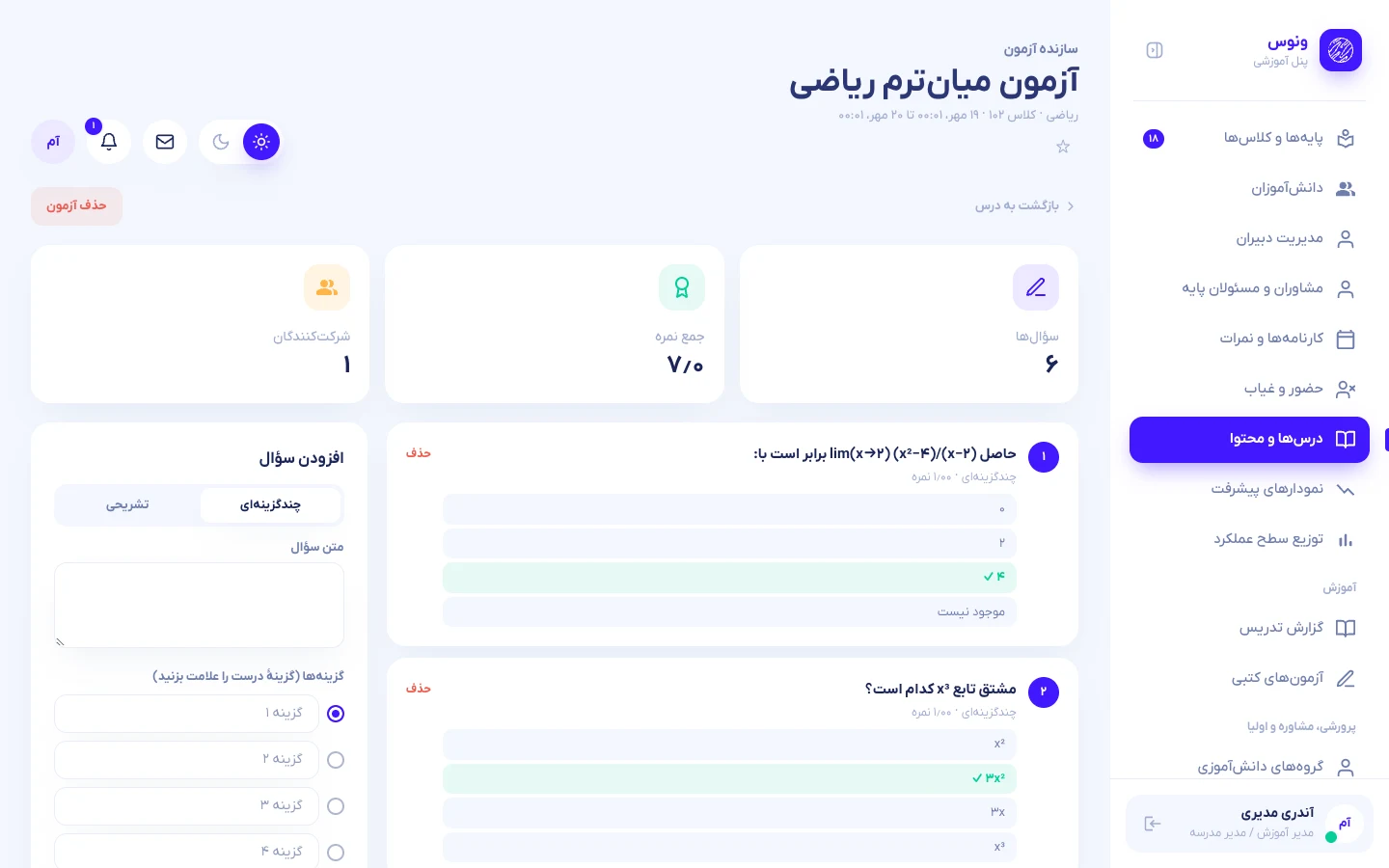
Online exams let a teacher test students without paper or manual marking. Questions are either multiple choice (marked automatically) or descriptive (a written answer the teacher marks). Each student can take an exam once.
Create the exam (teacher or administrator)
Open the subject
Subjects and content (درسها و محتوا) → the subject → the Online exam tab.
Fill in “New online exam”
Title, start and end of the window (Persian date and time) and the duration in minutes (5–240). The window is “between when may students start”; the duration is “how long they have after starting”. If the duration would run past the end of the window, the window end wins.
Press “Create exam and add questions”
The exam builder opens.
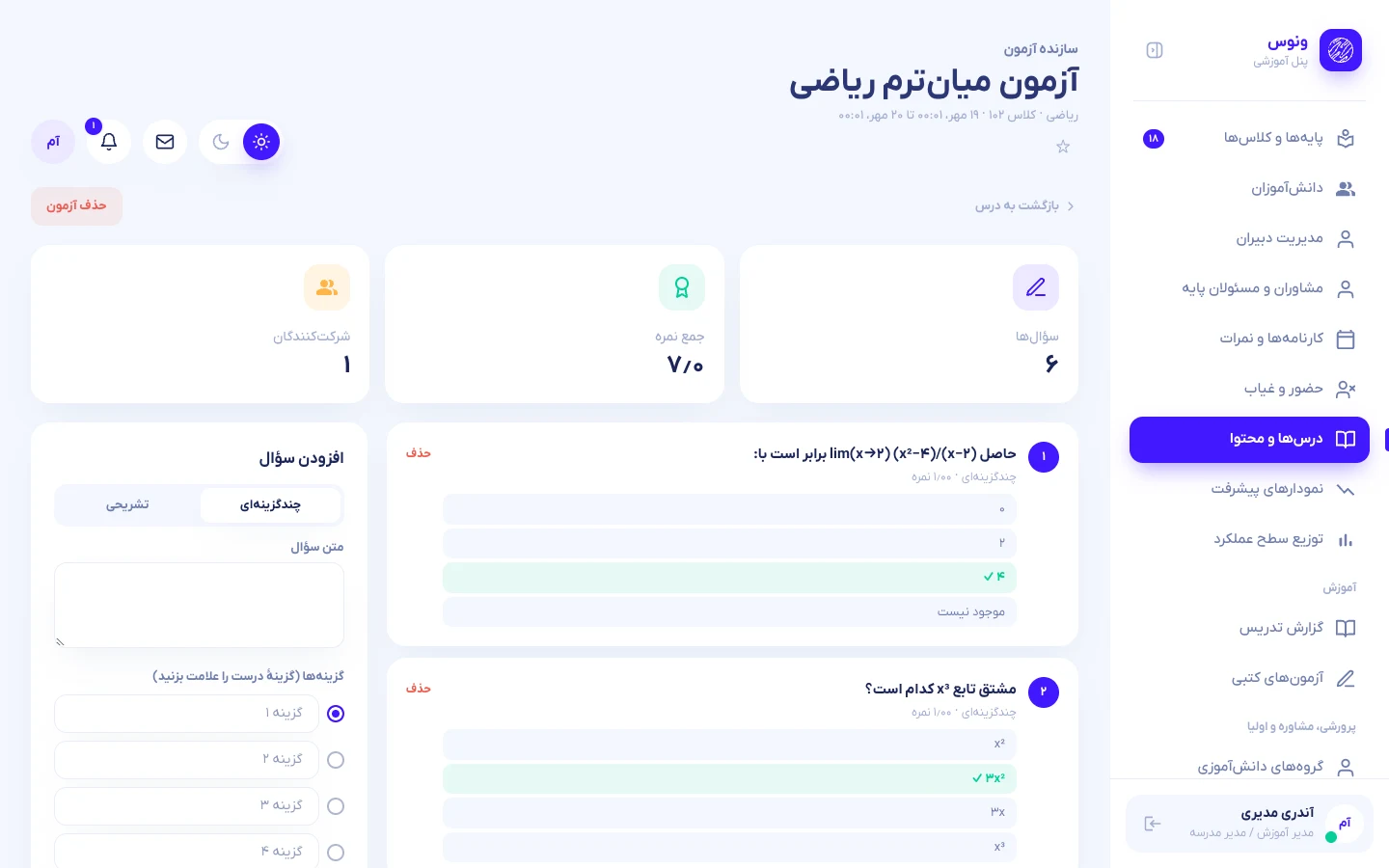
Add questions
Pick the type
Multiple choice or descriptive (the switch at the top of the form).
Text and points
Question text up to 1000 characters. Points per question range from 0.25 to 20; the exam total is simply the sum — it does not have to be 20.
Options and the correct one (multiple choice)
Two to six options; select the radio button beside the correct one. Empty options are ignored.
Press “Add question”
It joins the list with the correct option in green. Each question has a delete link.
What students see
Students of that class (only that class) see the exam under Online exam, grouped as open, upcoming, done and missed.
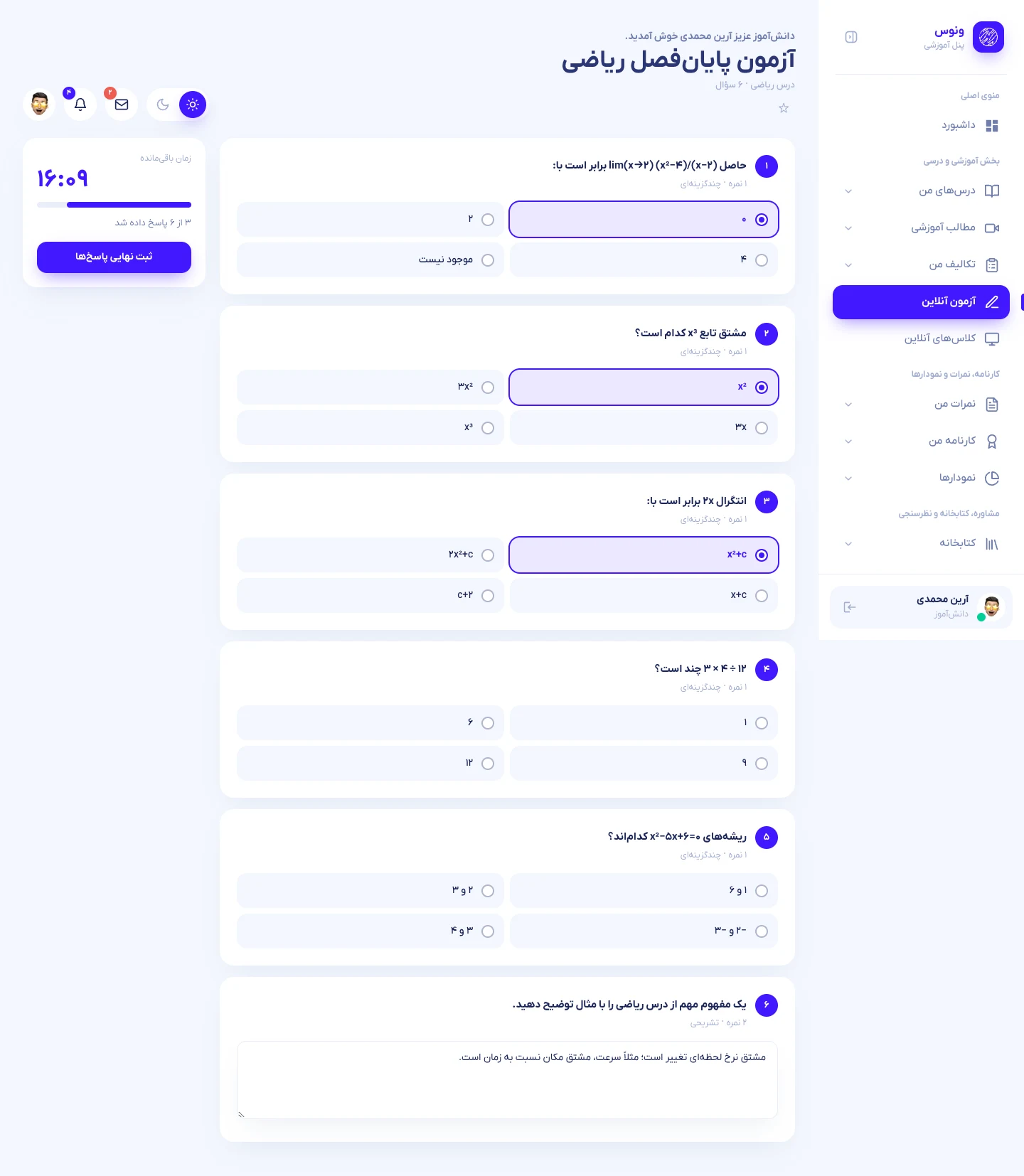
- Opening the exam starts the clock; the countdown runs on the server, so closing or refreshing the page does not pause it.
- The bar “x of y answered” shows progress.
- Final submit — or the timer reaching zero — saves the answers (a 45-second grace period covers the automatic submit).
- After submitting, no second attempt is possible.
Results and marking descriptive answers
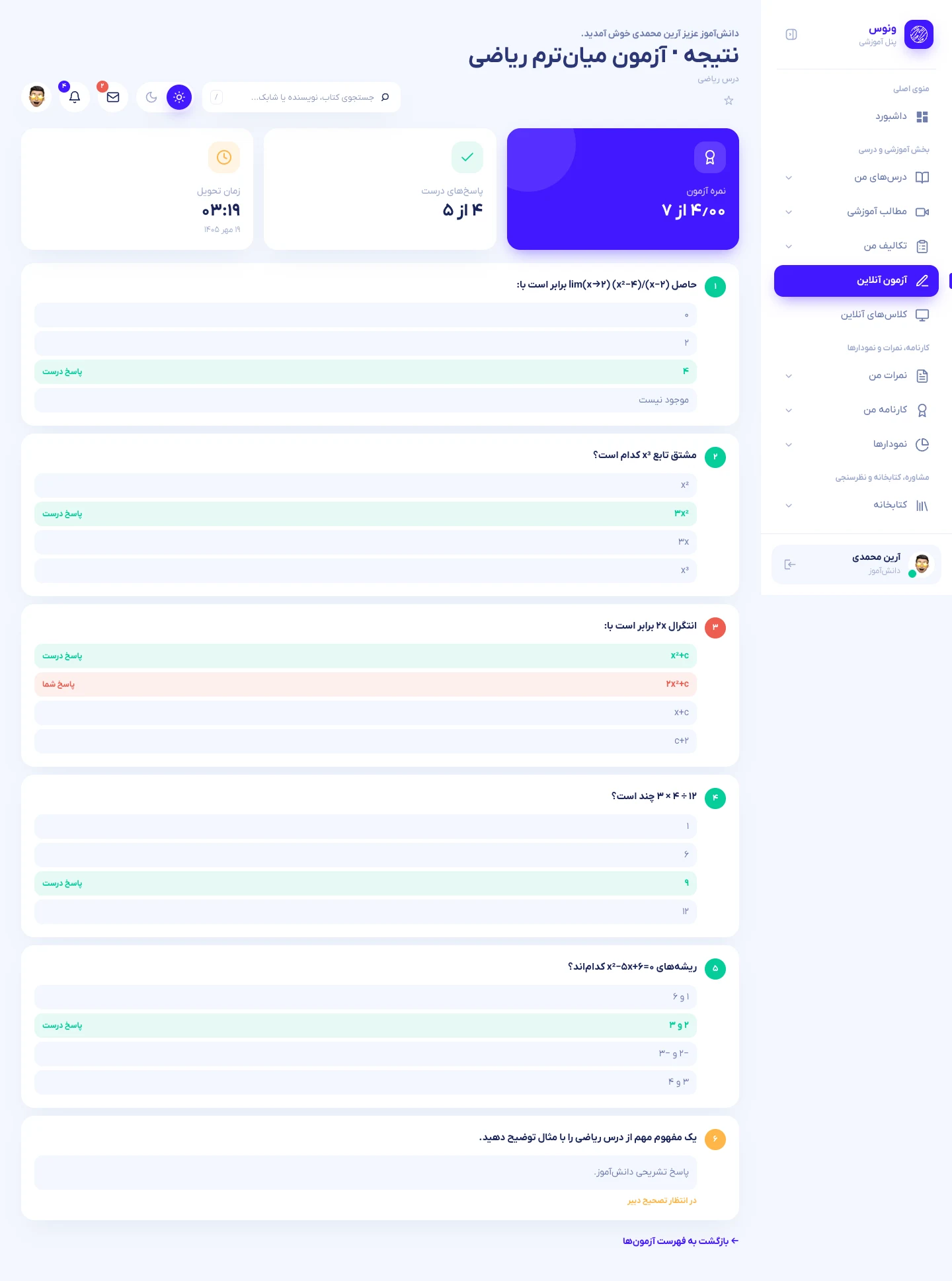
Multiple-choice marks are computed instantly. For descriptive questions, the exam page (Results and marking) shows a Mark descriptive button per student:
Open the answer
Press Mark descriptive; the written answer appears.
Type the points
From zero up to that question's points (more is rejected). Press Save mark; use Edit mark to change it later.
Automatic notification
The student's total is updated and they receive a “your exam mark was updated” notification.
Other kinds of tests
- Written (offline) exams — for paper tests: Written exams → new exam → enter each student's mark. Ranks, the class average and the top three are produced automatically.
- Assignments — students upload a file or text, the teacher marks and comments (Assignments tab of the subject).
- Online class — register the meeting link (Meet, Zoom, Skyroom…) with a time; students see a “live” badge and their joins are logged. Venus does not host video itself.
Common exam problems
| Problem | Cause and fix |
|---|---|
| A student cannot see the exam | It was created for a subject of another class, or its window has not started / has ended (see “upcoming” or “missed”). |
| “The exam time is over” | The window has ended. Create a new exam with a fresh window for that student. |
| The countdown is wrong | Check the server clock and time zone (APP_TIMEZONE=Asia/Tehran in .env). |
| Total shows 0 of 0 | The exam has no questions yet. |
Bulk import and export
Instead of typing students one by one you can register the whole school from a spreadsheet (CSV) — each student together with both parents.
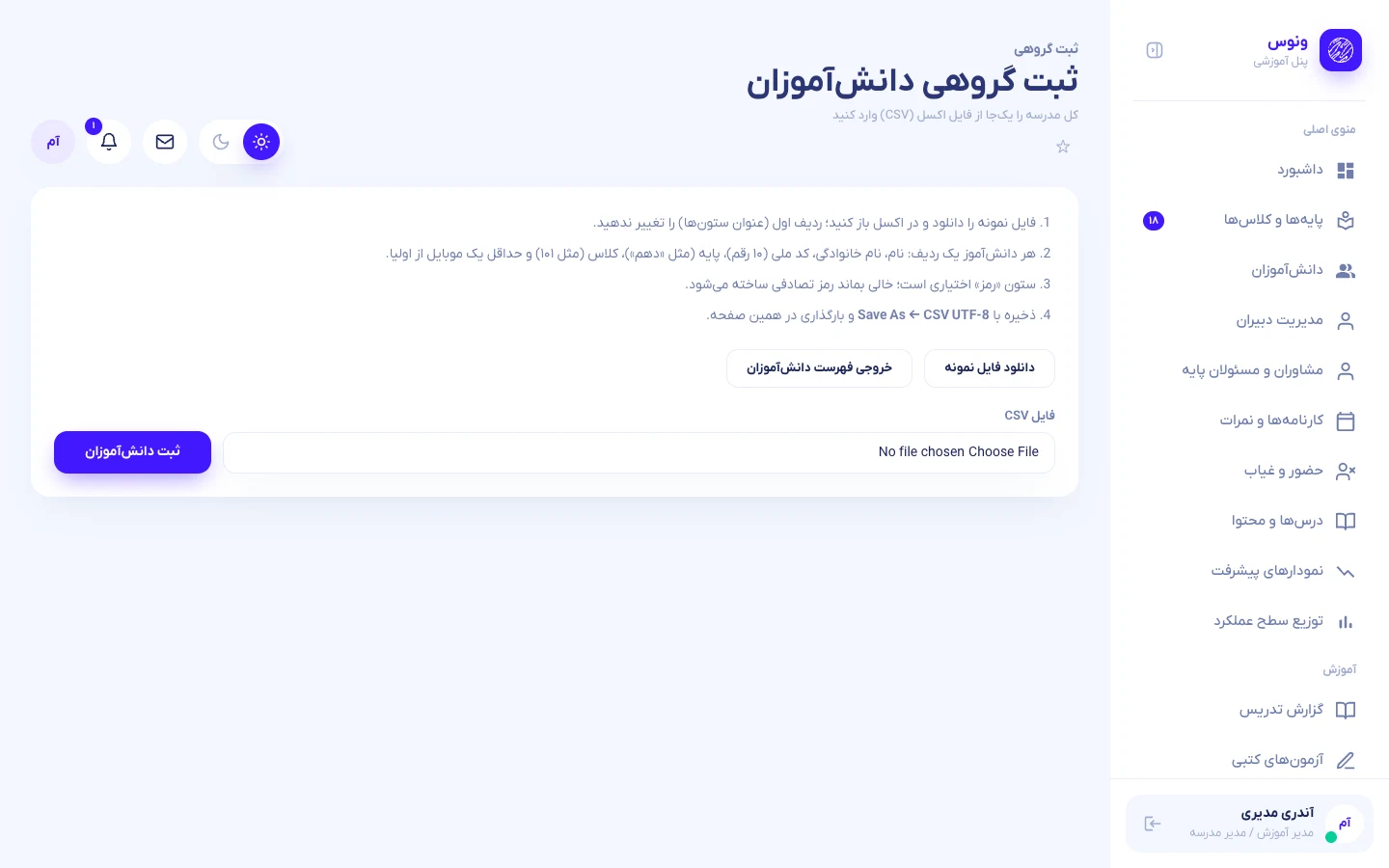
Download the template
Bulk import from CSV → Download sample file. Open it in Excel.
Fill the rows
One student per row: first name, last name, national code (10 digits), grade (e.g. “دهم”), class (e.g. 101), father's name, father's mobile, mother's name, mother's mobile, password. At least one mobile is required. The password column is optional — leave it empty to get a random 8-digit password. Do not change the header row. Grades and classes must already exist.
Save as CSV UTF-8
Excel: Save As → CSV UTF-8 (Comma delimited). If Persian text looks broken, you did not pick UTF-8.
Upload
Choose the file and press Register students. Maximum 4 MB.
Read the report and download the passwords
You get the number registered and every failed row with its line number and reason (bad or duplicate national code, unknown grade/class, invalid mobile…). Good rows are already saved; fix only the failed ones and upload again. Download login passwords gives the student and parent passwords in one file — once only.
Exporting the student list
The same page offers Export student list: a CSV with the same columns (administrator: whole school; teacher and counselor: only their classes). Edit it in Excel and reuse it to import new students.
School profile
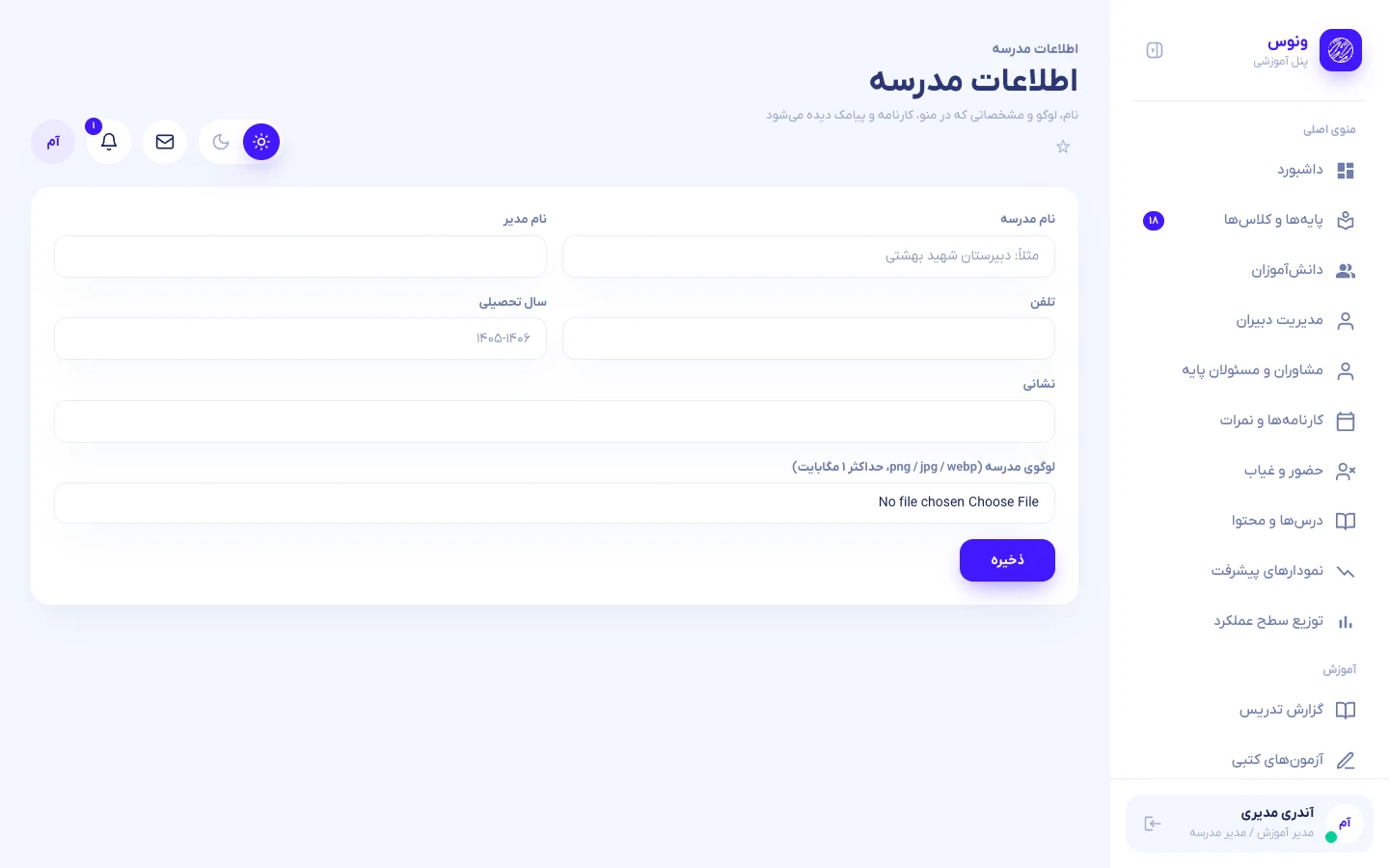
The administrator sets name, principal, phone, address, academic year and logo (PNG/JPG/WebP up to 1 MB) under School profile. The name and logo appear in the sidebar, browser tab title, the official report-card header and the {school} SMS variable. Tick Remove logo to delete it.
Administrator guide
Sign in at /login with a national code, password and the captcha code. Persian digits are accepted everywhere a number is typed.
Dashboard
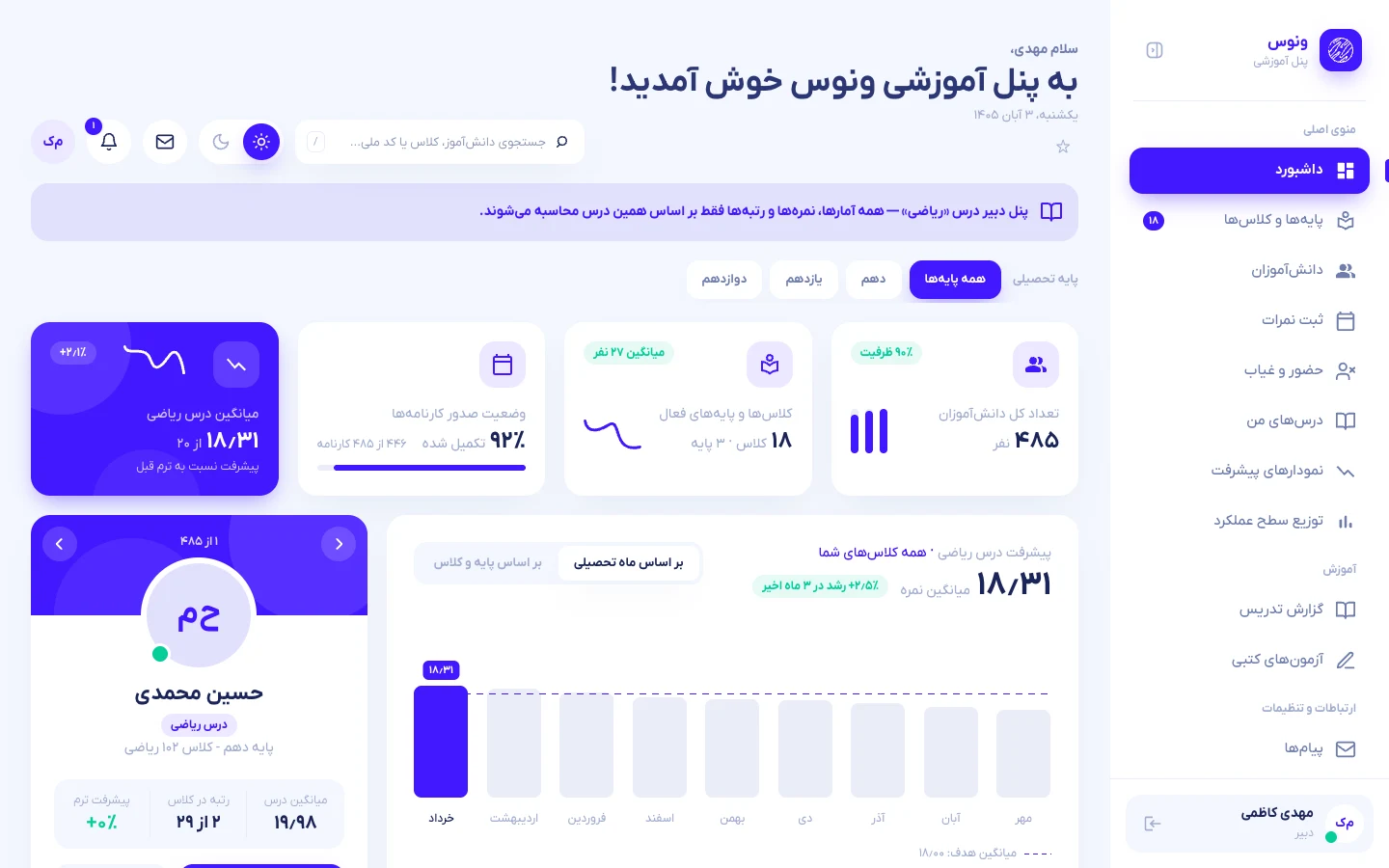
The dashboard summarises the whole school and reacts to the grade and class filters at the top. Every card, chart and list is recalculated for the selection.
- KPI cards — number of students, active classes and grades, report-card completion, and the overall average with its change versus the previous term.
- Student profile card — students are ranked by GPA, best first. The arrows move through that ranking; choosing a grade or class jumps to the top student of that selection. Students without grades are shown with “—” and listed last.
- Progress chart — switch between by month and by grade and class; click a bar to drill down.
- Distribution and lists — performance tiers (excellent 18–20, good 16–18, average 14–16, needs effort <14) and the top / needs-attention lists.
- Weekly strip — this week’s exams and events on the Jalali calendar.
The search box in the header searches students by name (any order, e.g. “Amir Ahmadi”), national code, grade or class.
Grades and classes
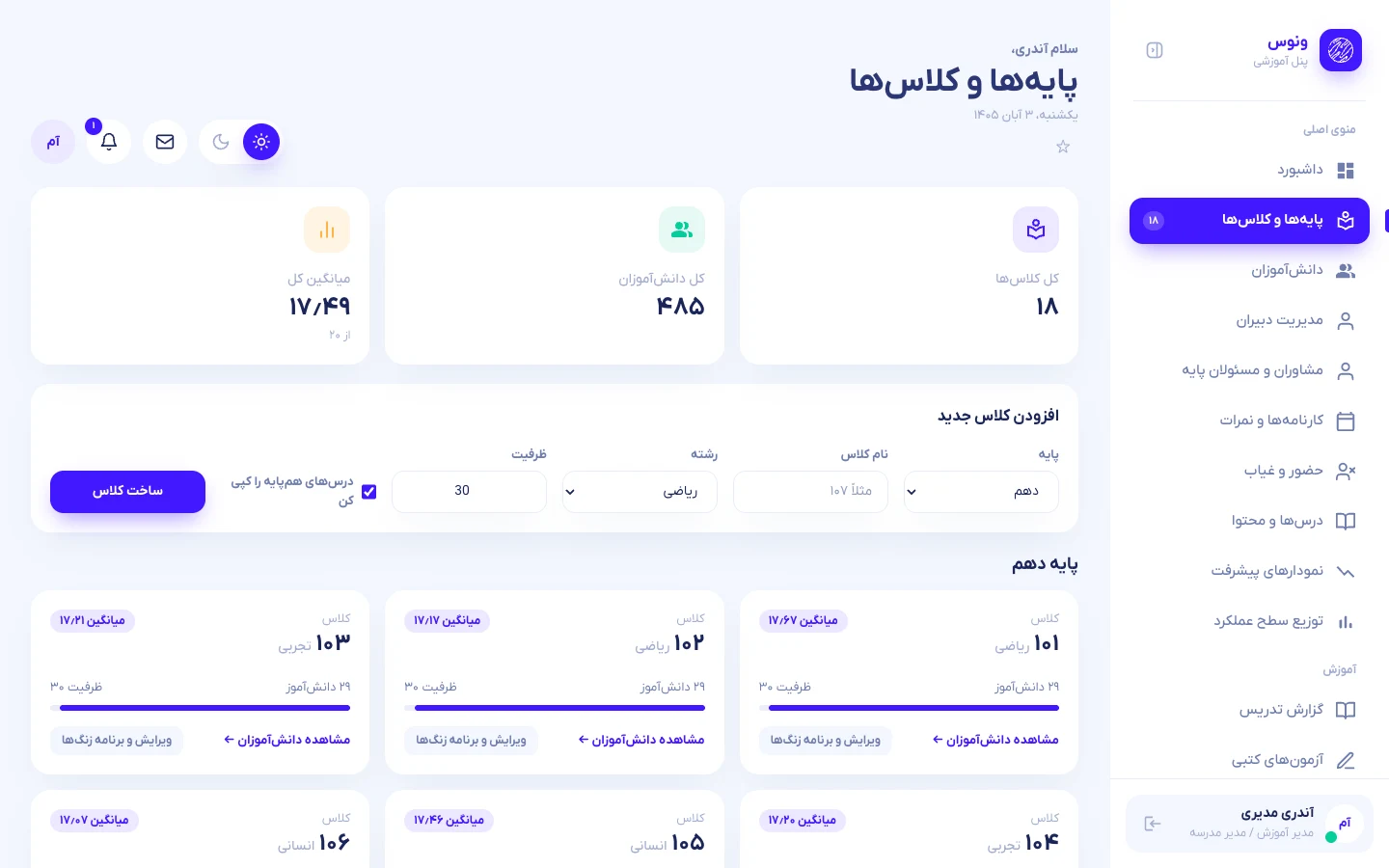
- Add a class — class names are free text:
101,107or any word. A name must be unique inside its grade level. Persian digits are converted automatically. - Edit — change name, field and capacity; delete a class only when it has no students.
- Copy subjects — duplicates the subject list (without teachers) of the first class in that grade.
Weekly timetable
Each class page contains a grid with the weekdays (Saturday–Thursday) as rows and up to eight periods as columns. Choose a subject for every cell and press Save timetable.
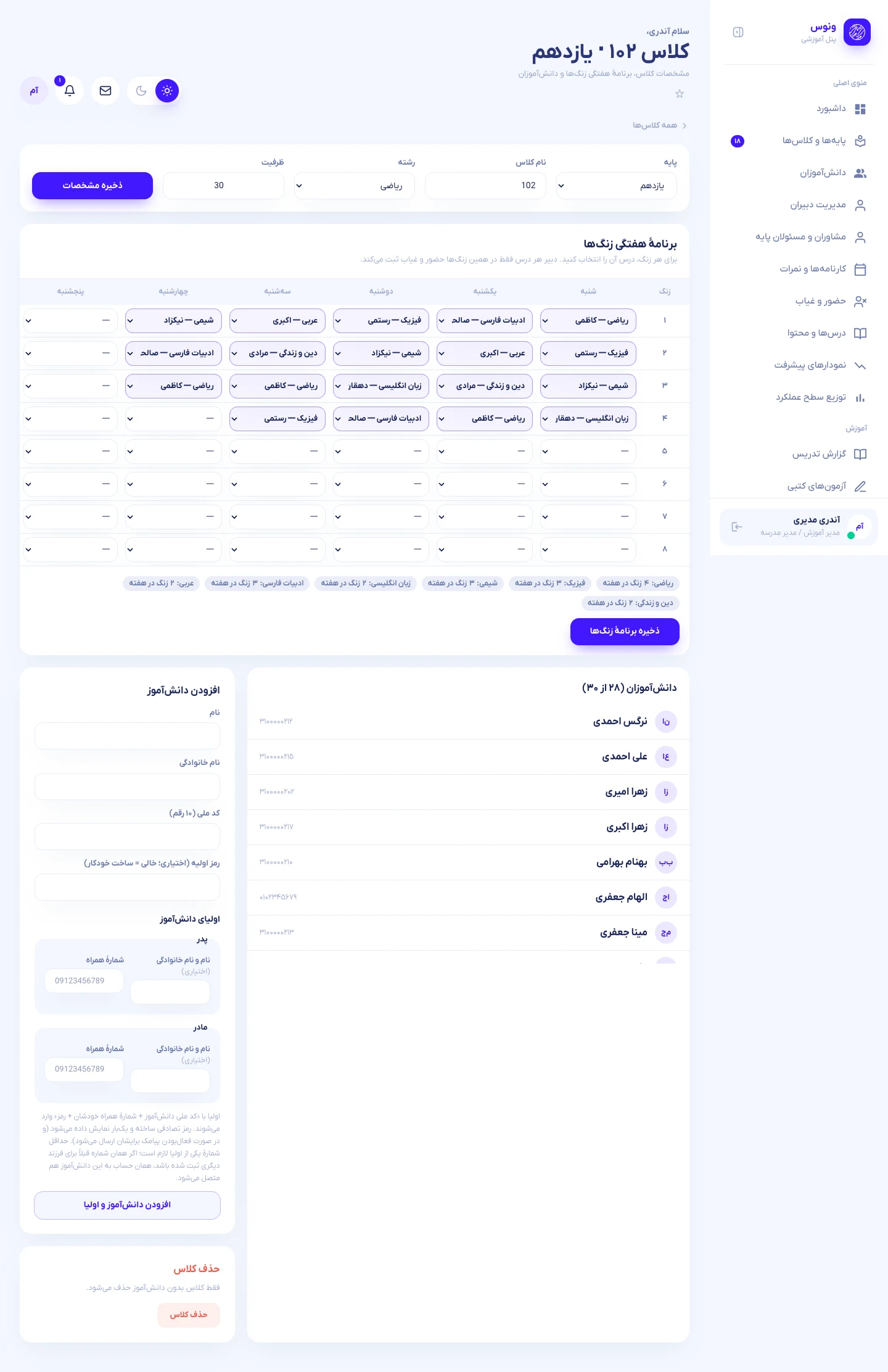
- Saving replaces the whole grid of that class.
- If the same teacher is already teaching another class in the same period, the save is rejected and the clash is listed (teacher, day, period, other class).
- Teachers see these periods when taking attendance and their weekly load on the teacher page.
Teachers and subjects
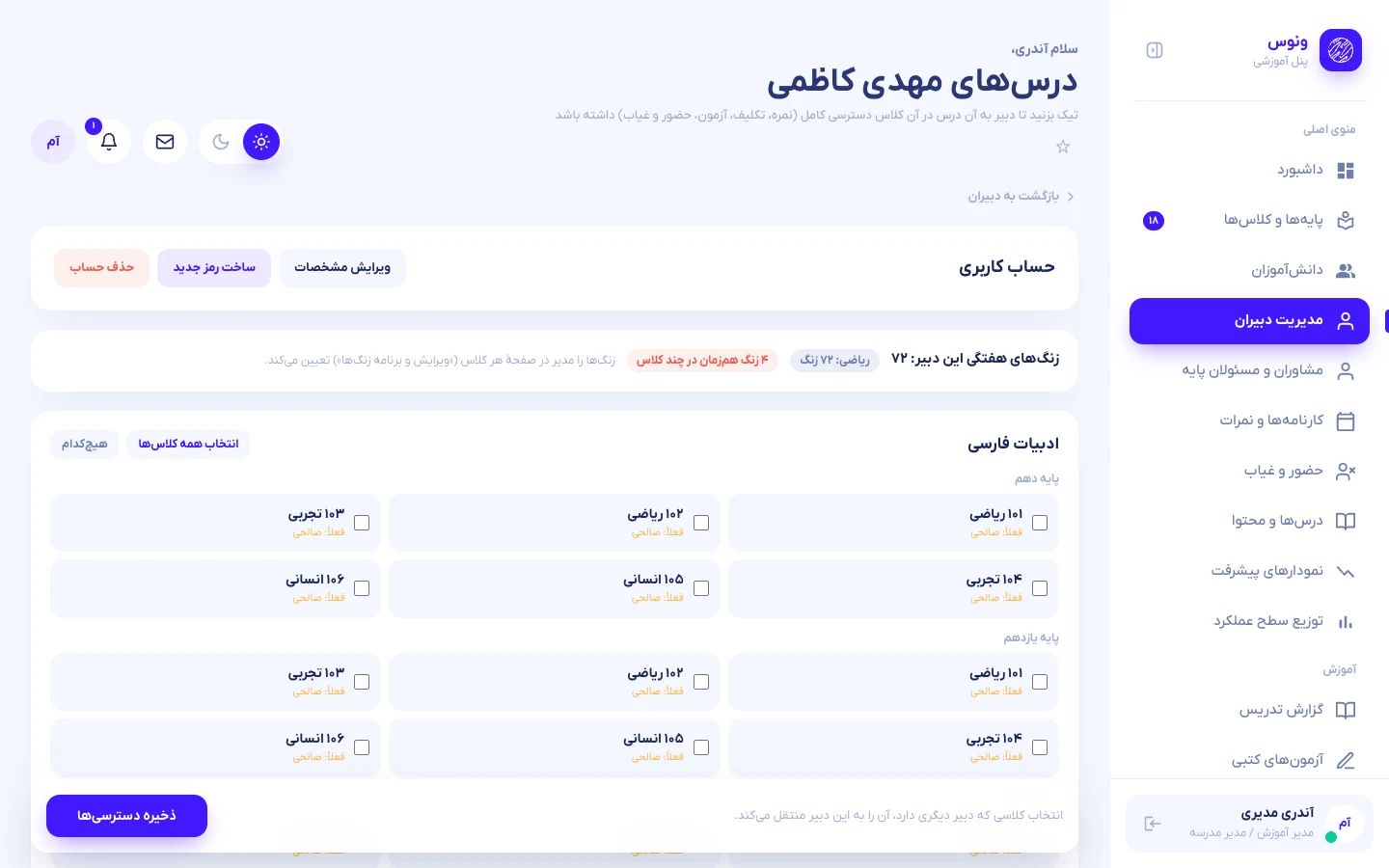
- Create a teacher with first name, last name, national code and password.
- Assign access — the edit page lists every subject with a checkbox per class (grouped by grade). Tick the classes the teacher should teach for that subject. Select all classes and None speed this up.
- Several subjects — one teacher can teach, for example, Mathematics in some classes and Physics in others. They switch between subjects in the header; all numbers shown to them are calculated for the active subject only.
- Transfers — ticking a class that already has another teacher for that subject moves it to this teacher.
- New subject — use Add a new subject for lessons that do not exist yet (for example Biology): name, unit weight (1–6) and the classes.
Students
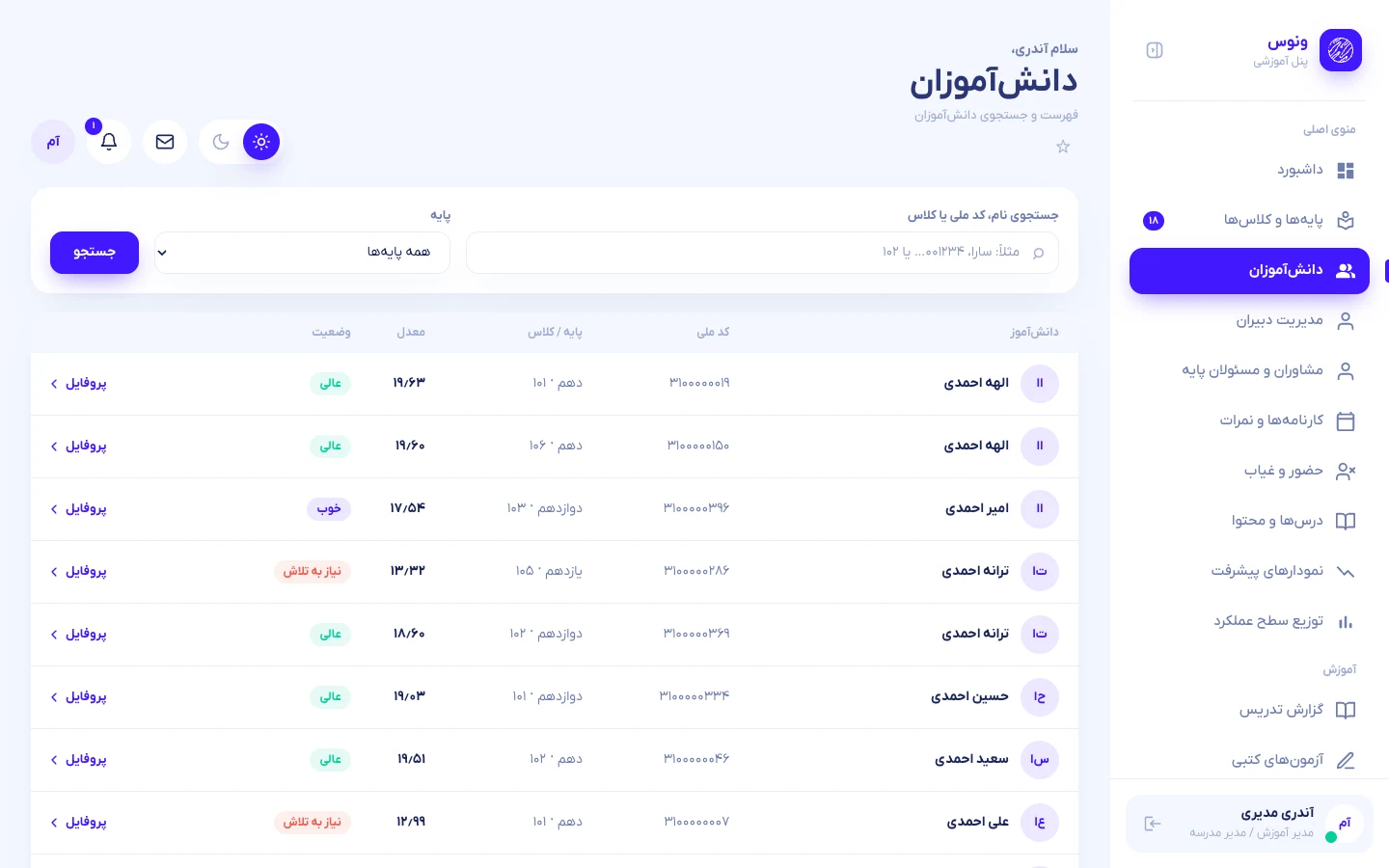
The directory lists students with national code, class, average and status. Search accepts several words in any order. Open a student for the full profile: subject tabs, grades with edit/delete, assignment submissions, attendance, discipline records and the forms to record a grade, send an announcement or add a discipline entry.
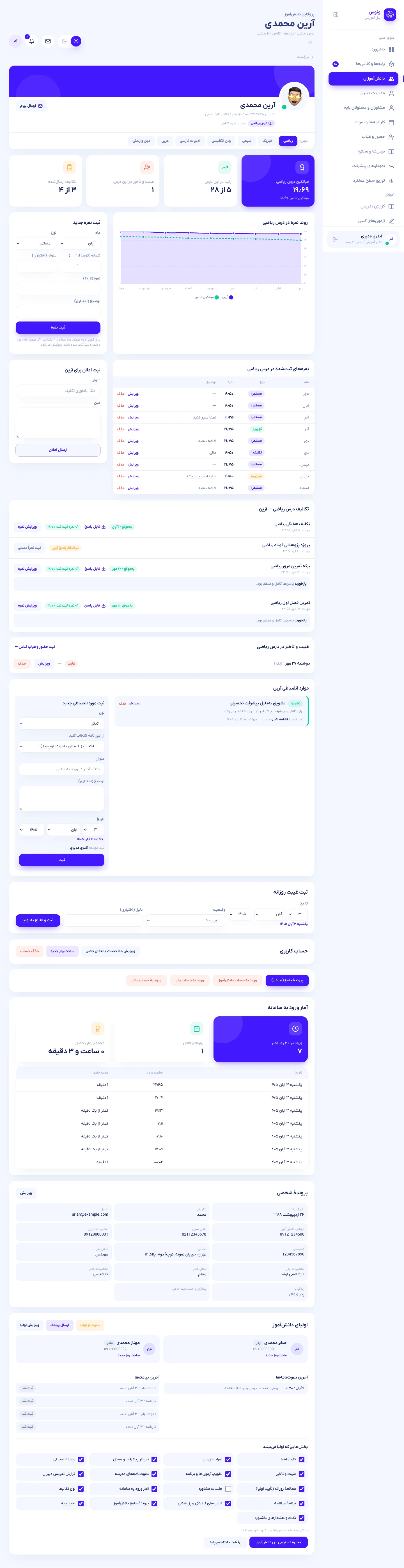
Gradebook and report cards
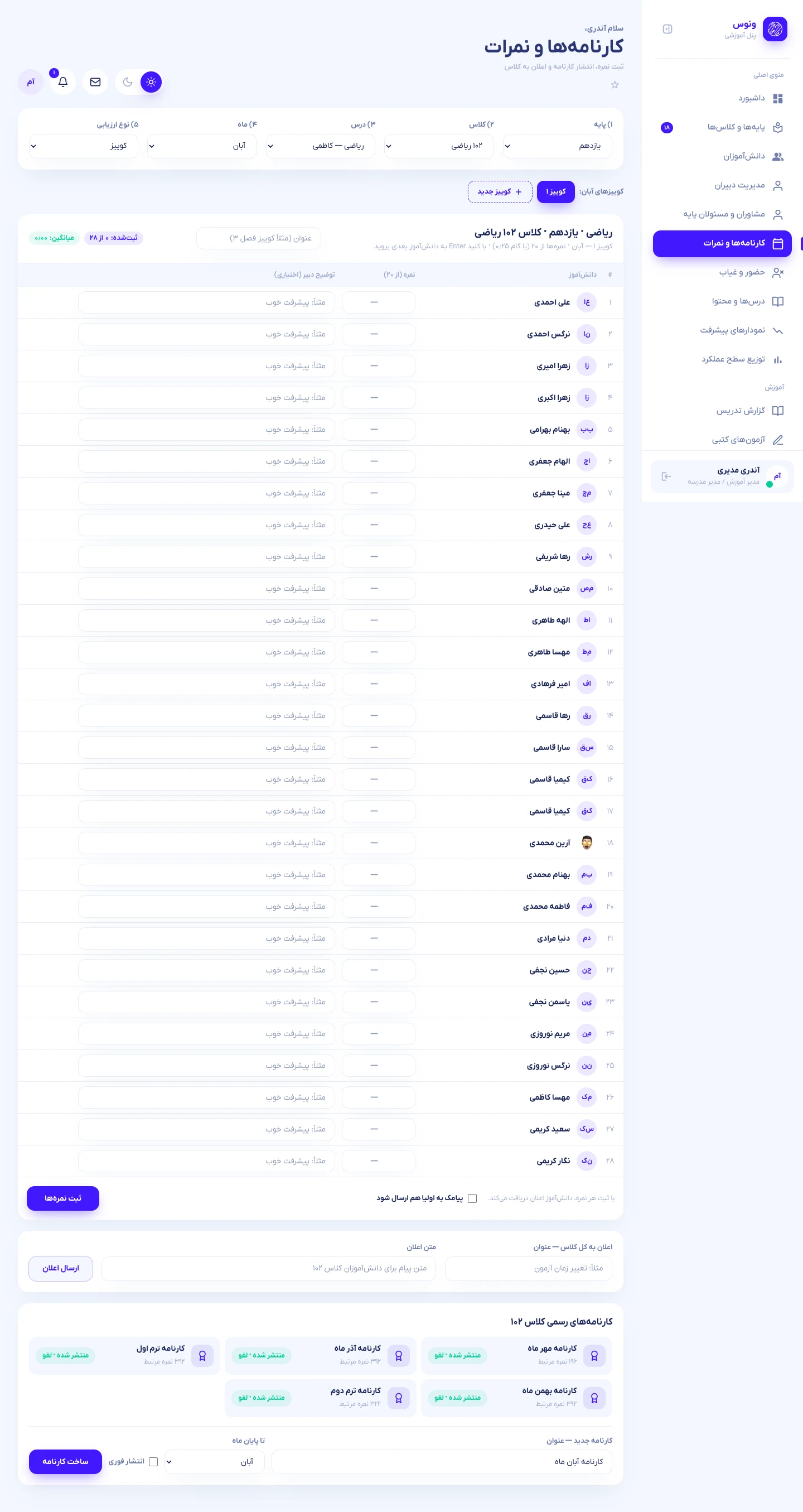
- Choose grade → class → subject → month → type (continuous, quiz, assignment, midterm, final).
- For continuous work and quizzes you can keep several entries per month (Quiz 1, Quiz 2 …). Use the tabs above the table, or + New, and give each entry an optional title.
- Type scores from 0 to 20 in steps of 0.25. Press Enter to jump to the next student. The count and live average are shown above the table.
- Press Save. Only changed scores are written, and each student receives a notification.
Below the table the admin sees the official report cards of the class. Each card is a draft until you press Publish; students only see published cards. Use New report card to create one (title, up to which month, publish immediately).
The Announcement to the class form sends a notification to every student of the selected class.
Attendance
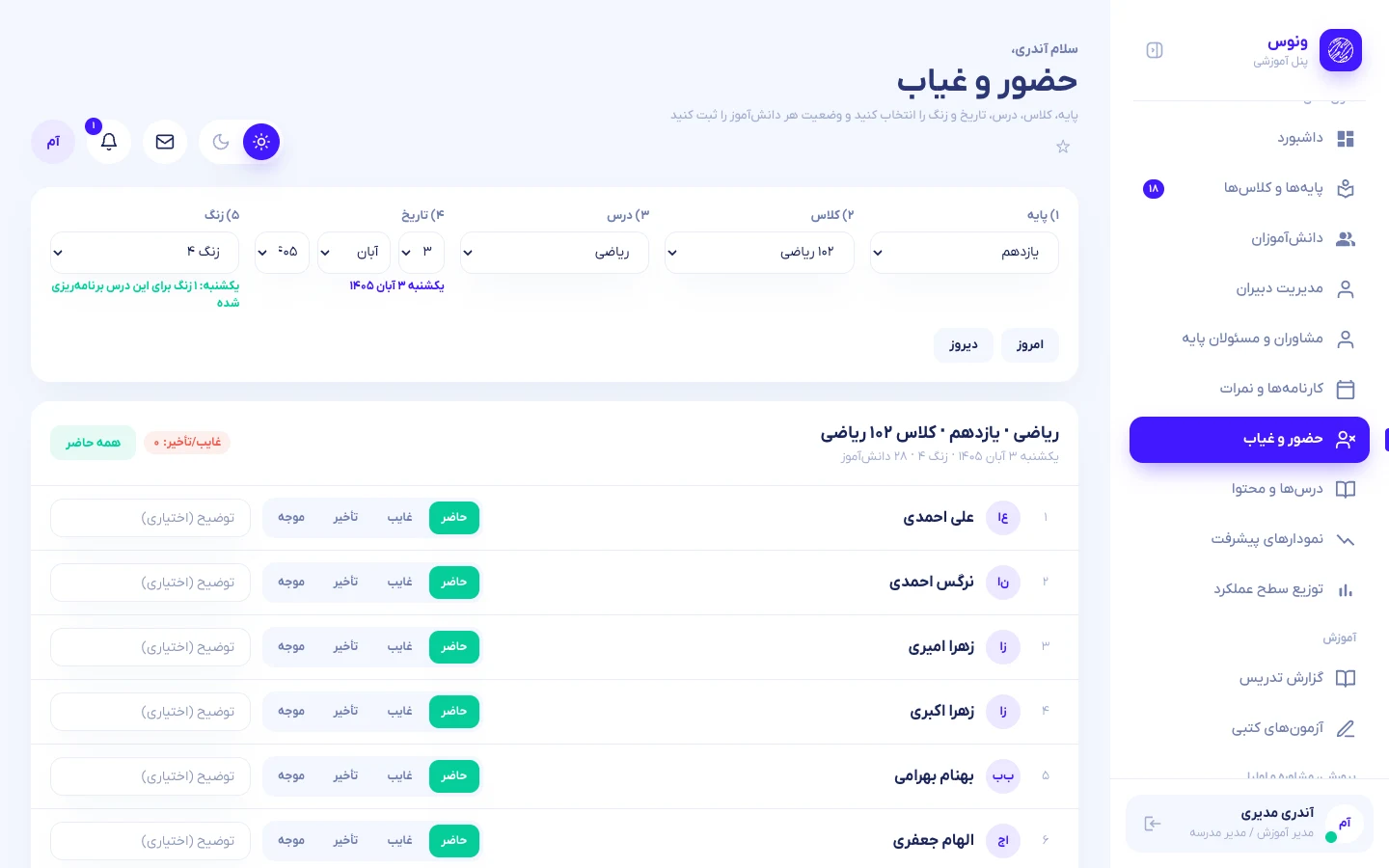
- Pick grade, class, subject, date (Jalali picker) and period. Periods scheduled in the timetable for that weekday are highlighted; other days allow a make-up entry.
- Set every student to Present, Absent, Late or Excused and add a reason if needed. “Present” leaves no record. Absent students are notified.
- Dates in the future are rejected. Recent entries can be edited or deleted from the list below.
Courses, content, exams and online classes
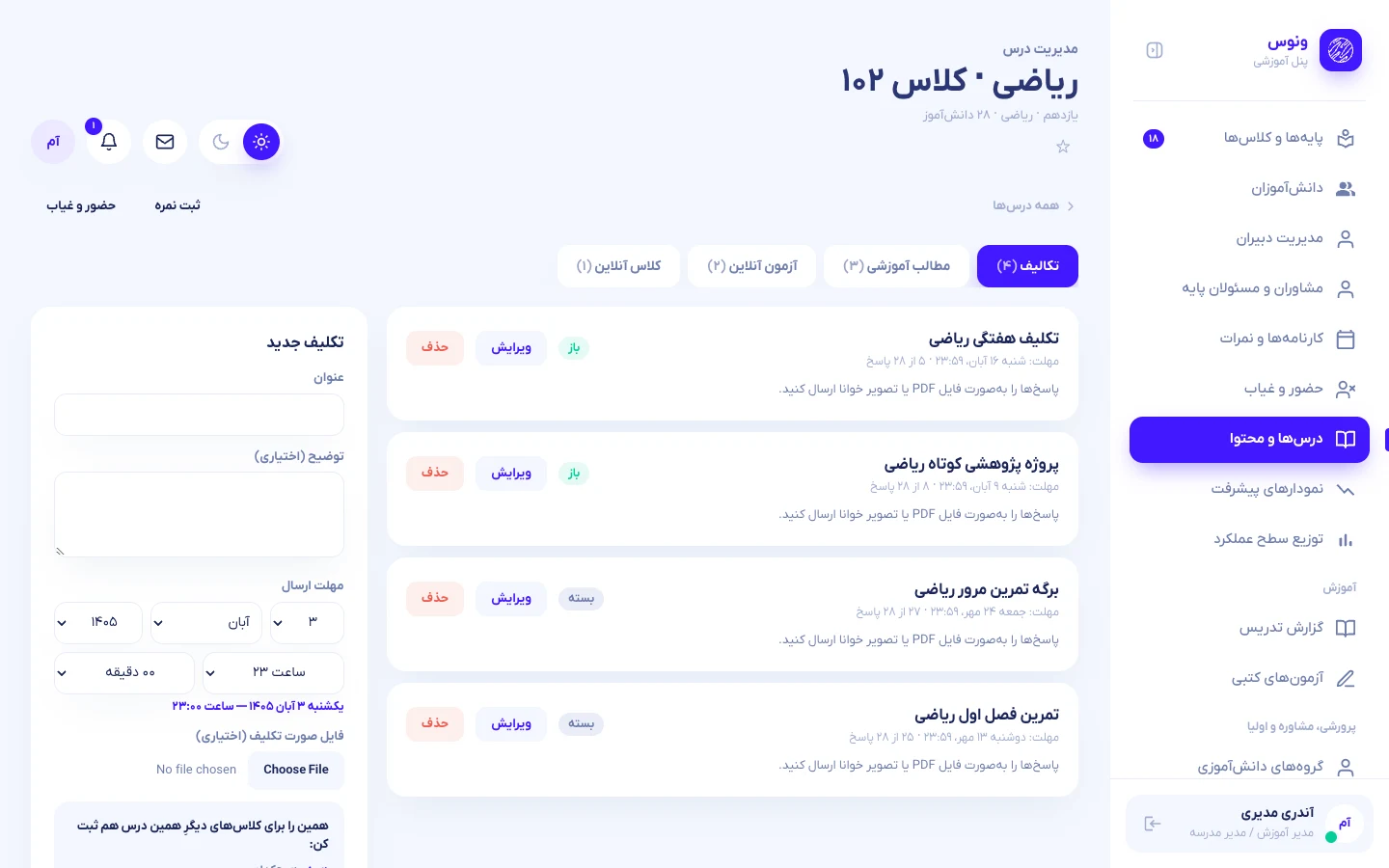
Each course page has four tabs:
- Assignments — title, description, deadline (Jalali), optional attachment. Students are notified. After the deadline you grade each submission (score and feedback) or enter a manual score for students who handed in on paper.
- Learning content — video, audio or PDF; upload a file (up to 50 MB) or paste a link.
- Online exams — set start, end and duration, then add questions.
- Online classes — title, join link (Google Meet, Skype, Adobe Connect …) and time; a “live” badge appears while it runs.
When creating assignments, content or online classes you can apply them to all classes of the same subject and grade with one tick.
Progress and distribution
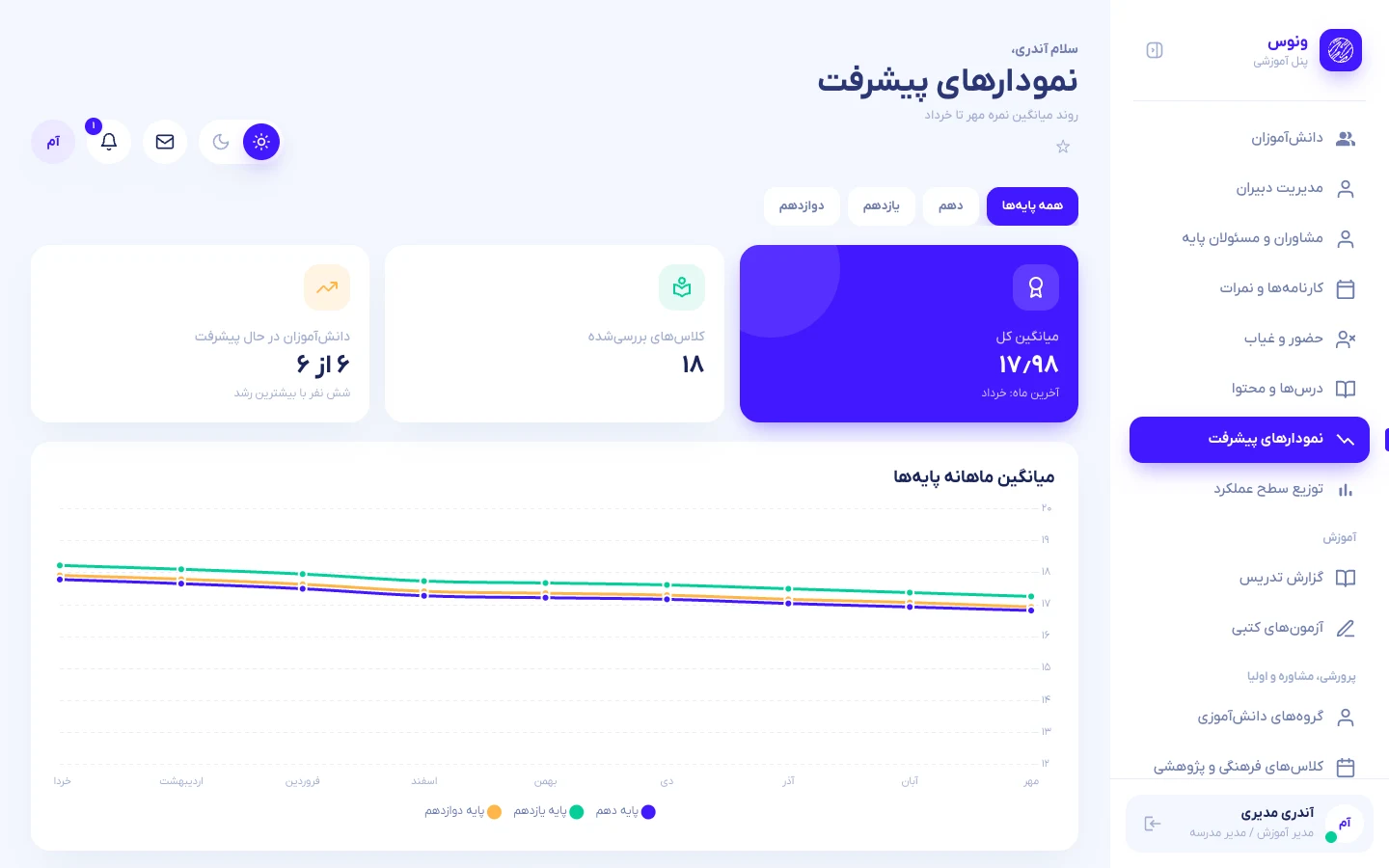
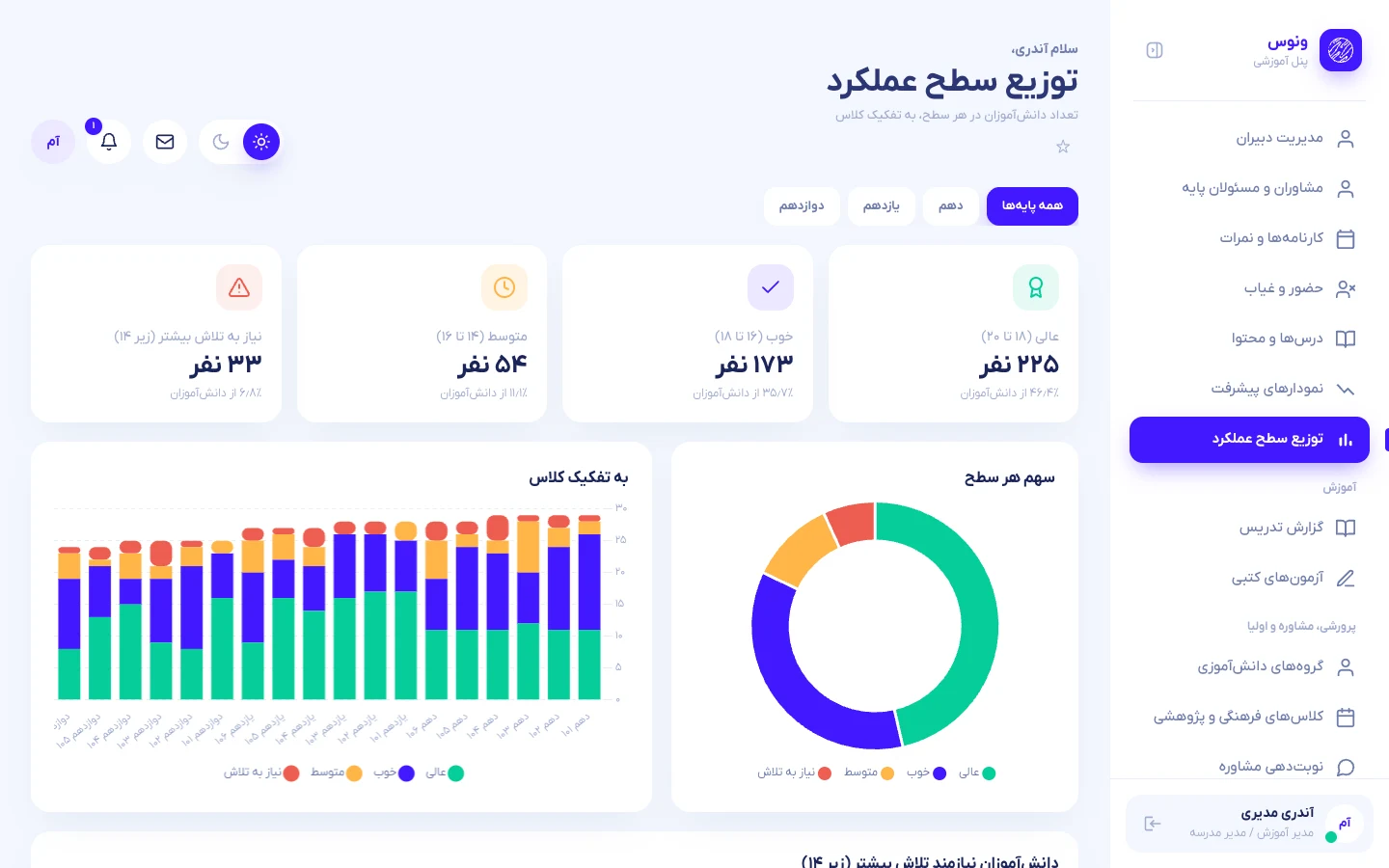
Both pages follow the grade tabs at the top. Progress compares monthly averages and lists the six students with the largest rise and the six who need attention. Distribution counts students per performance tier per class. Students without grades are ignored in these statistics instead of being counted as zero.
Discipline records
From a student profile, record a warning, encouragement or delay with a title, optional description and a date. The record keeps who recorded it and when; the student sees it (with the recorder’s name and role) under Discipline and receives a notification.
Messages, notifications and profile
- Messages — inbox, sent items and compose, with an attachment (PDF, JPG, PNG, ZIP, DOC, DOCX up to 5 MB). The recipient search matches full names and shows class or subjects so people with the same name can be told apart. Students may write only to teachers and administrators.
- Notifications — the bell opens a slide-over with grades, announcements, new assignments, exams and messages.
- Profile and settings — name, avatar (image up to 2 MB), password change, display preferences.
Teacher guide
Teachers see the same dashboard, but everything is limited to the classes and subjects assigned by the administrator: the class list, the student directory, the class and subject pickers in the gradebook and attendance, exams, and the dashboard calendar.
Switching subjects
A teacher with two or more subjects sees the Active subject switch in the header of the dashboard, classes, students, progress and distribution pages. The averages, ranks, charts and student lists are calculated for the chosen subject only. The choice is remembered for the session.
Grading
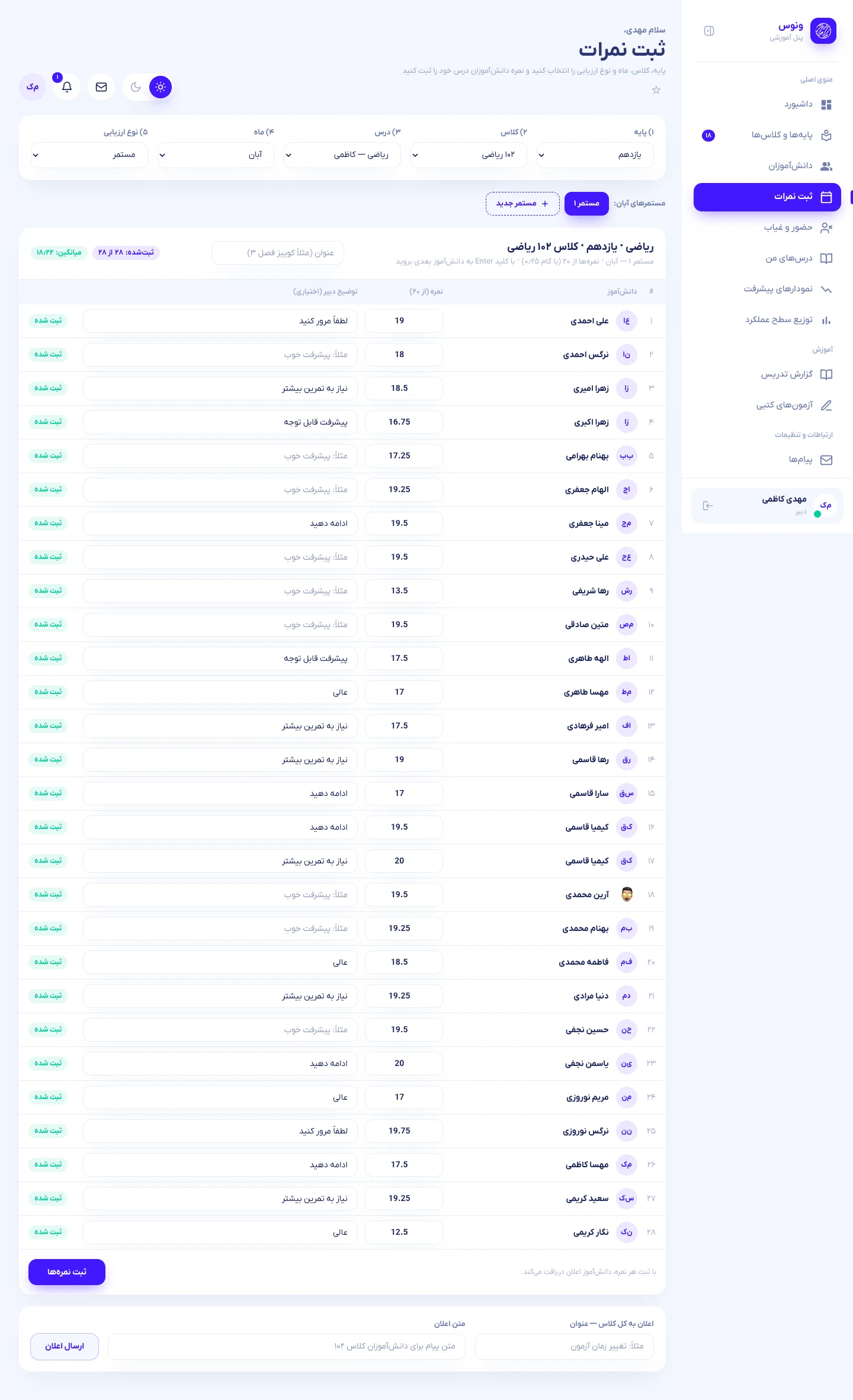
Open Report cards & grades (the label for teachers is Enter grades). Only your own subjects appear. Enter scores exactly as described in the gradebook section — several quizzes per month are supported.
Taking attendance
Choose the class and subject, then the date. The periods your timetable schedules on that weekday are highlighted. Save the roll call; students marked absent or late are notified.
Course tools
Open Courses & content to create assignments, upload learning content, schedule online classes and build online exams for your subjects. Grade submissions and descriptive exam answers from the same pages.
Student profile actions
Opening a student of your class shows only your subject. From there you can record a grade, send a private announcement, enter a manual assignment score and add a discipline record. Opening a student who is not in one of your classes returns 403 Forbidden.
Student guide
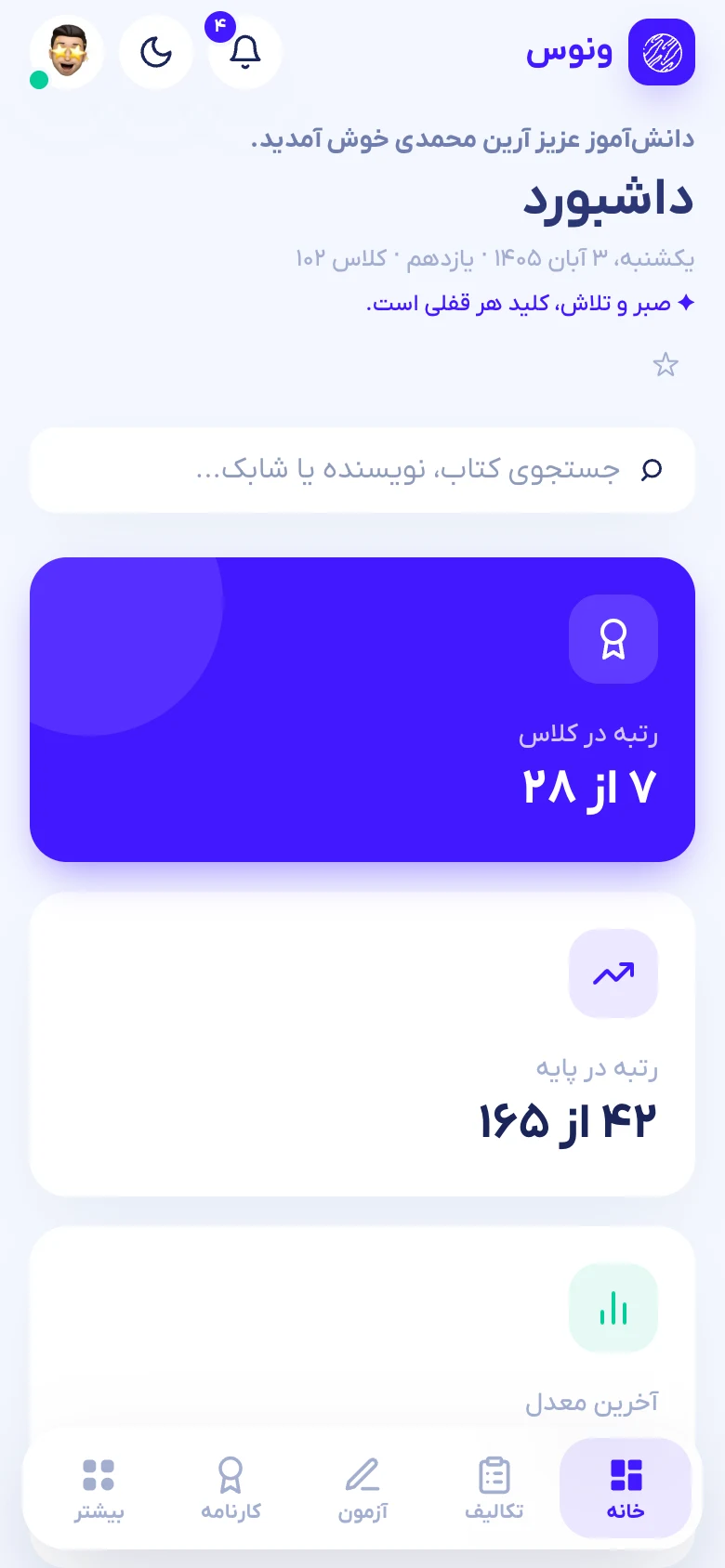
Students sign in with the national code and password given by the school. The home screen shows rank in class and grade, the latest GPA, outstanding work, live classes and the GPA trend through the year.
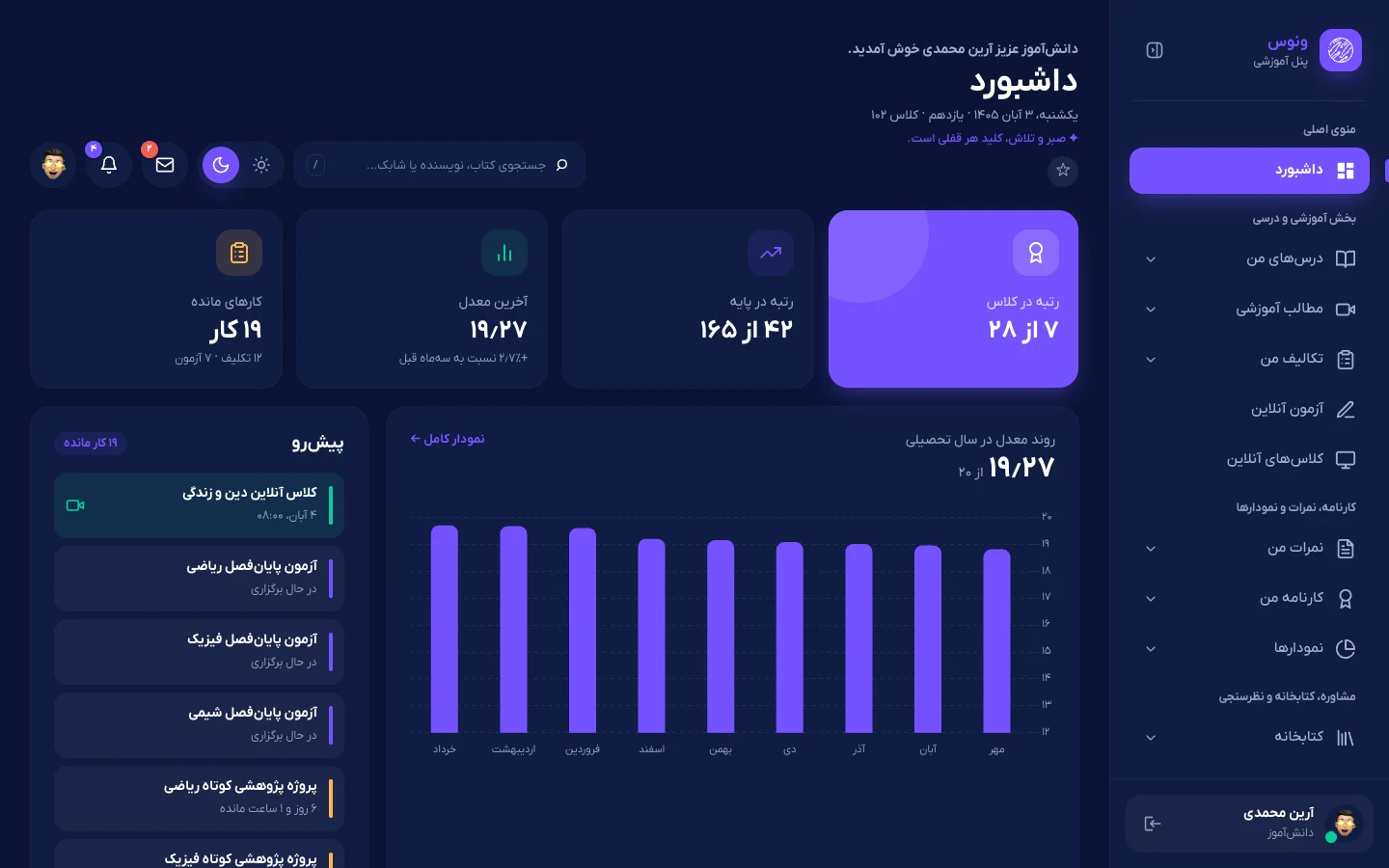
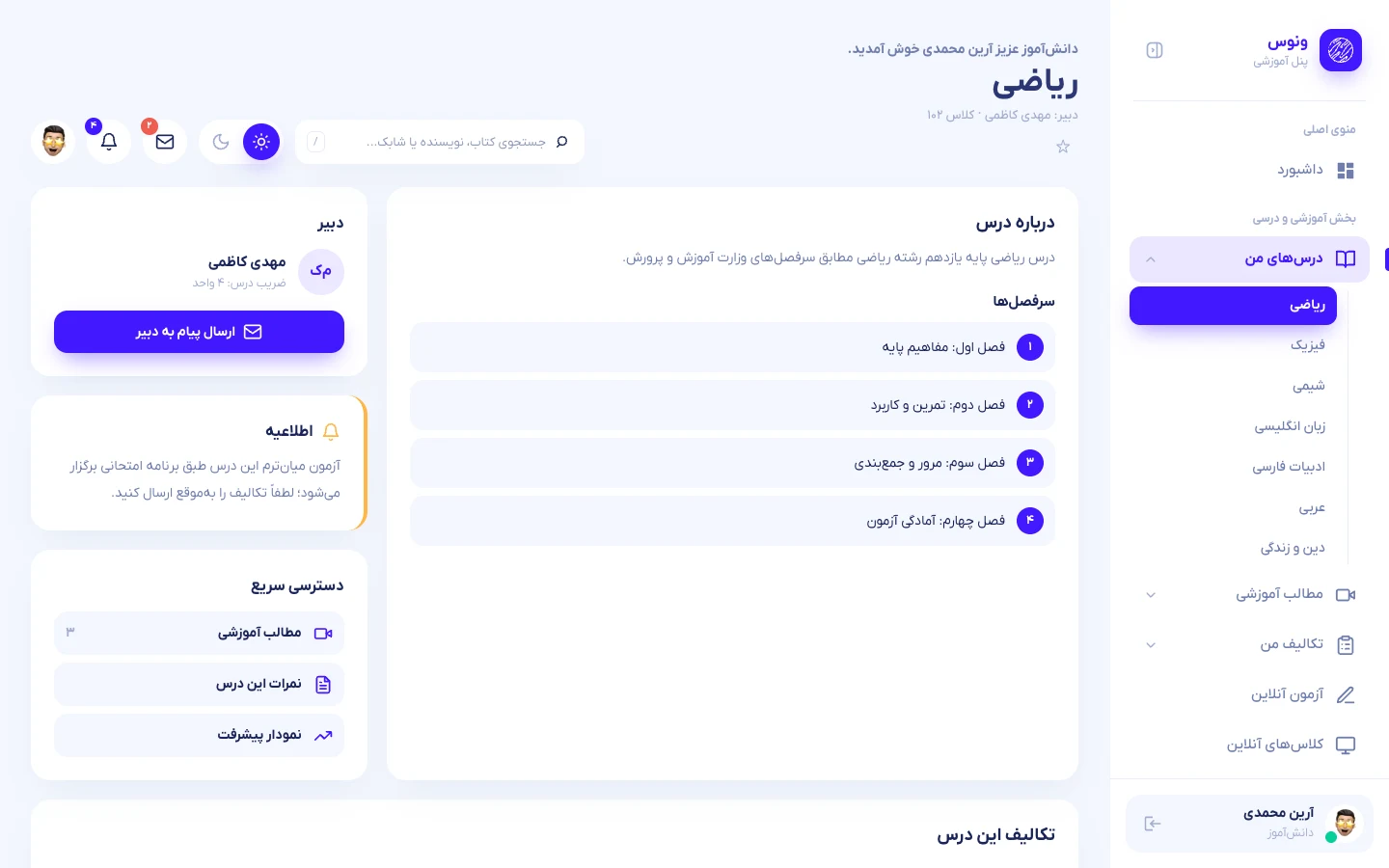
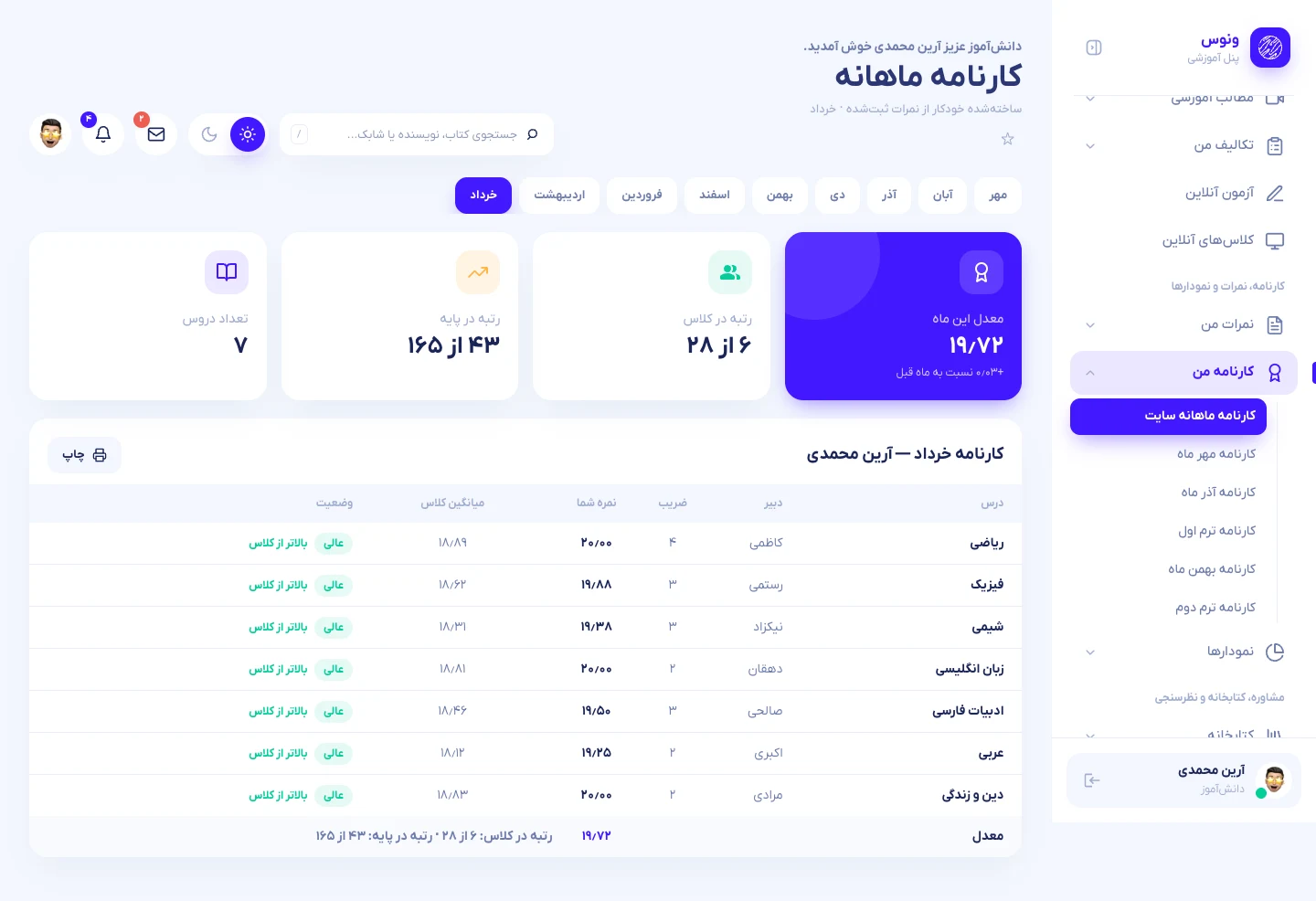
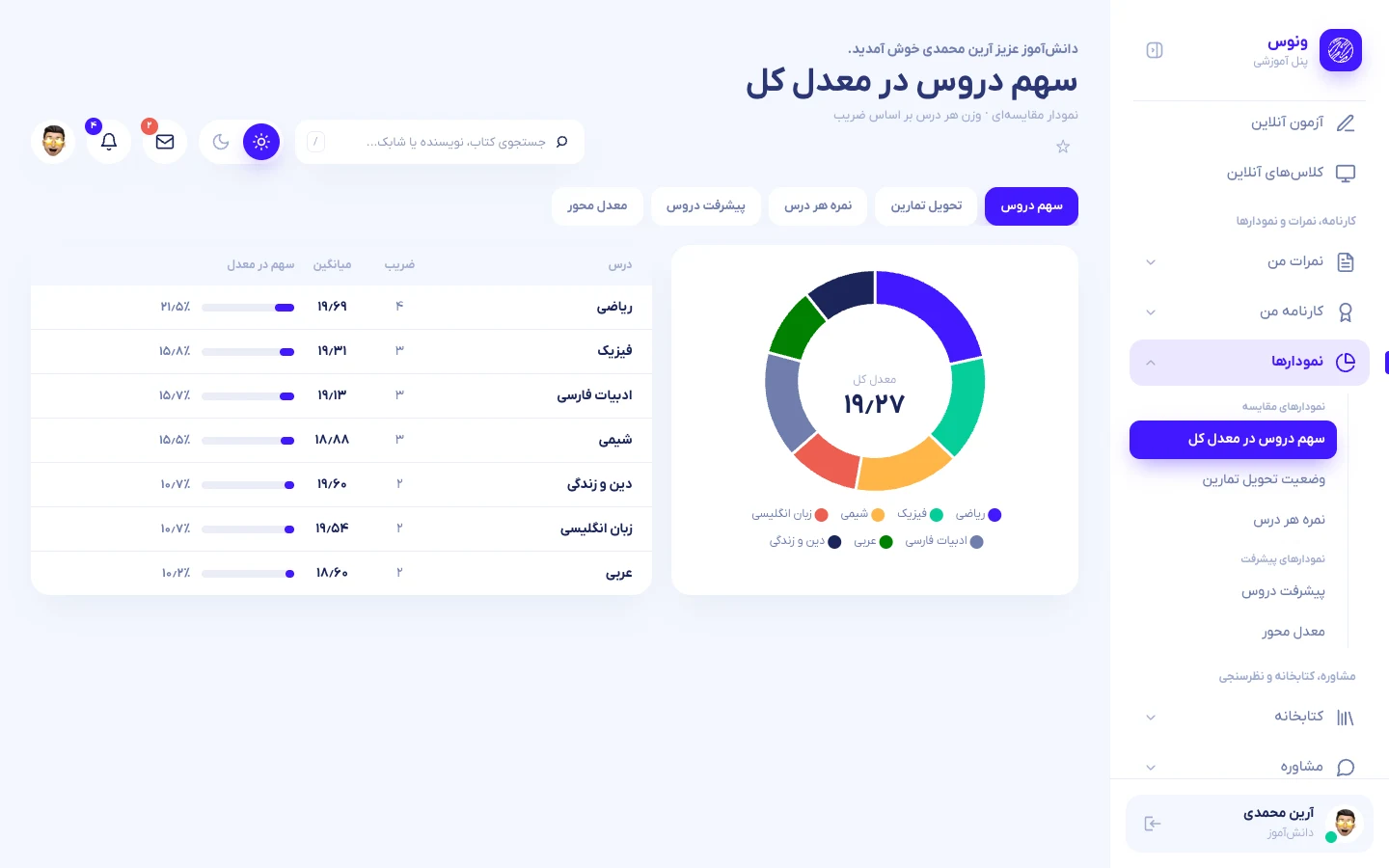
| Module | What the student can do |
|---|---|
| My courses | One page per subject: teacher, syllabus, content, assignments and marks. Sub-pages: learning content, assignments, marks and charts. |
| Learning content | Watch videos, listen to audio, download PDFs and files. |
| Assignments | Inbox (pending), Outbox (submitted with score and feedback) and upload of the answer file (PDF, JPG, PNG, ZIP, DOC, DOCX up to 10 MB). Late submissions are marked. |
| Online exams | Open, upcoming, completed and missed exams. A countdown runs during the exam; the result page shows correct answers and pending descriptive grading. |
| Online classes | Today’s and upcoming sessions with a join link and a “live” badge. |
| My marks | All marks per subject and month with the teacher’s comments. |
| Report cards | Monthly report card (with class comparison) and the official cards published by the principal; printable. |
| Charts | Rank among classmates, assignment delivery, mark distribution, per-subject trends and the GPA axis. |
| Library | Browse the school library, reserve books, see current loans and reservations. |
| Counseling | Request a counseling session (date and note) and follow school counseling programs. |
| Study pattern | Log study duration and number of tests per subject and day; see the weekly pattern. |
| Elections & polls | Vote once per poll; see past participation. |
| Attendance | Absences, excuses and delays by date, subject and period. |
| Discipline | Warnings, praise and delays, with who recorded them and when. |
| Calendar and timetable | Jalali calendar with exams and tasks plus the weekly timetable built by the administrator (printable). |
| Messages and notifications | Write to teachers and administrators; read school announcements and grade notices. |
On a phone
On screens narrower than 1024 px the sidebar becomes a bottom tab bar (Home, Assignments, Exams, Report card, More) and the stat cards become snap-scrolling carousels. The site can be added to the home screen.
Parents, counselors and SMS
This part of the portal connects the school with families. It is built around four ideas: parents have their own safe, read-only login; the admin decides what they see; SMS works through the pattern (template) system of Iranian gateways; and staff can send only what the admin allows.
Parent accounts and sign-in
When a student is registered the school enters the mobile number of the father and/or the mother (a name is optional; at least one mobile is required and the two numbers must differ). One account is created per mobile number; if the same mobile already belongs to another child, that account is linked to the new student too, so a family with several children has one login.
| Sign-in field | Value |
|---|---|
| Mobile | The parent’s own registered mobile number (Persian digits and the +98 form are accepted). |
| Password | A random 8-digit password created with the account. It is shown once to the admin or counselor and sent to the parent by SMS (event “login details”). Parents can change it under Settings. |
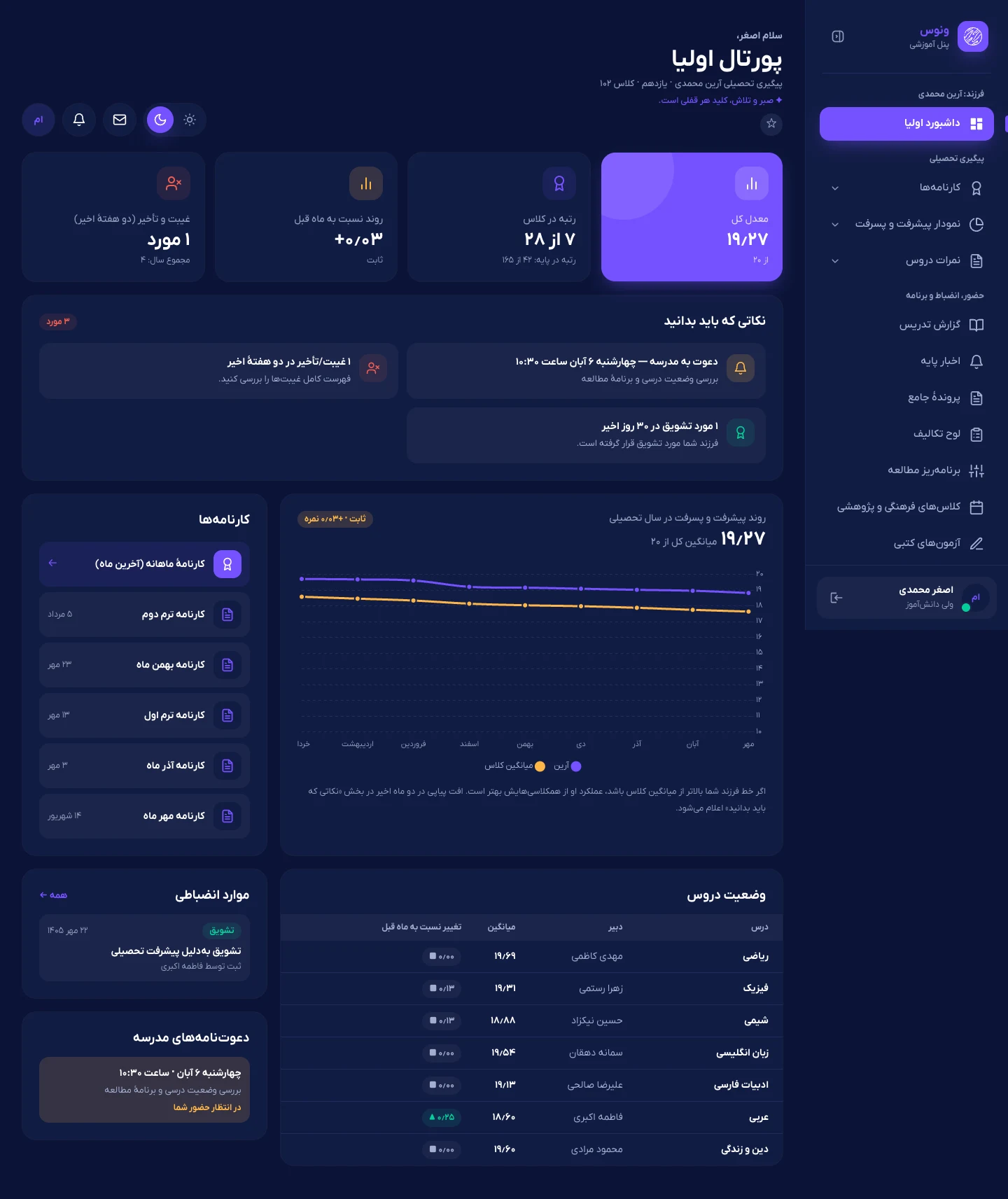
The parent home lists “what you should know” ordered by urgency (invitations, discipline, absences, a falling GPA, a subject that dropped, upcoming exams, praise), the GPA trend against the class average, per-subject movement, report cards, discipline and invitations. With several children a switcher appears at the top.
Counselors and grade leads
Admin → Counselors and grade leads creates a counselor and ticks the grades they are responsible for. A counselor sees only those grades’ classes and students on every page and in every chart; opening another grade’s student returns “403”.
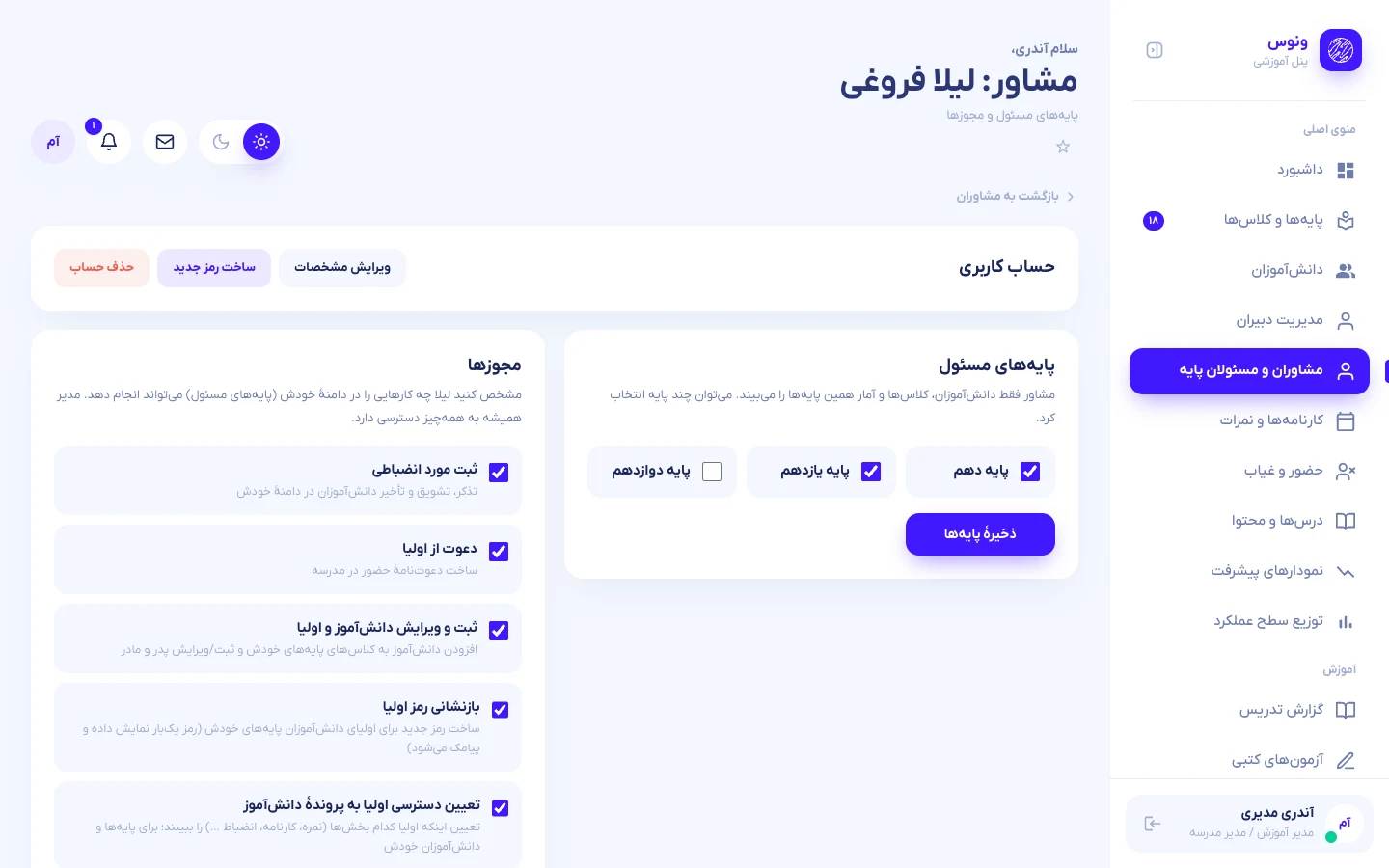
| Permission | Meaning |
|---|---|
| Register and edit students and parents | Adds a student to a class of the counselor’s grades together with father/mother mobiles; edits parents later. The creator is stored; the initial student password (if left empty) is generated, shown once. |
| Reset parents’ passwords | “New password” button on each parent in the student profile. |
| Decide parent access | Opens Parent access for the led grades and the per-student switches. |
| Discipline, invitations, SMS | Same matrix as teachers (see below). |
What parents see (access levels)
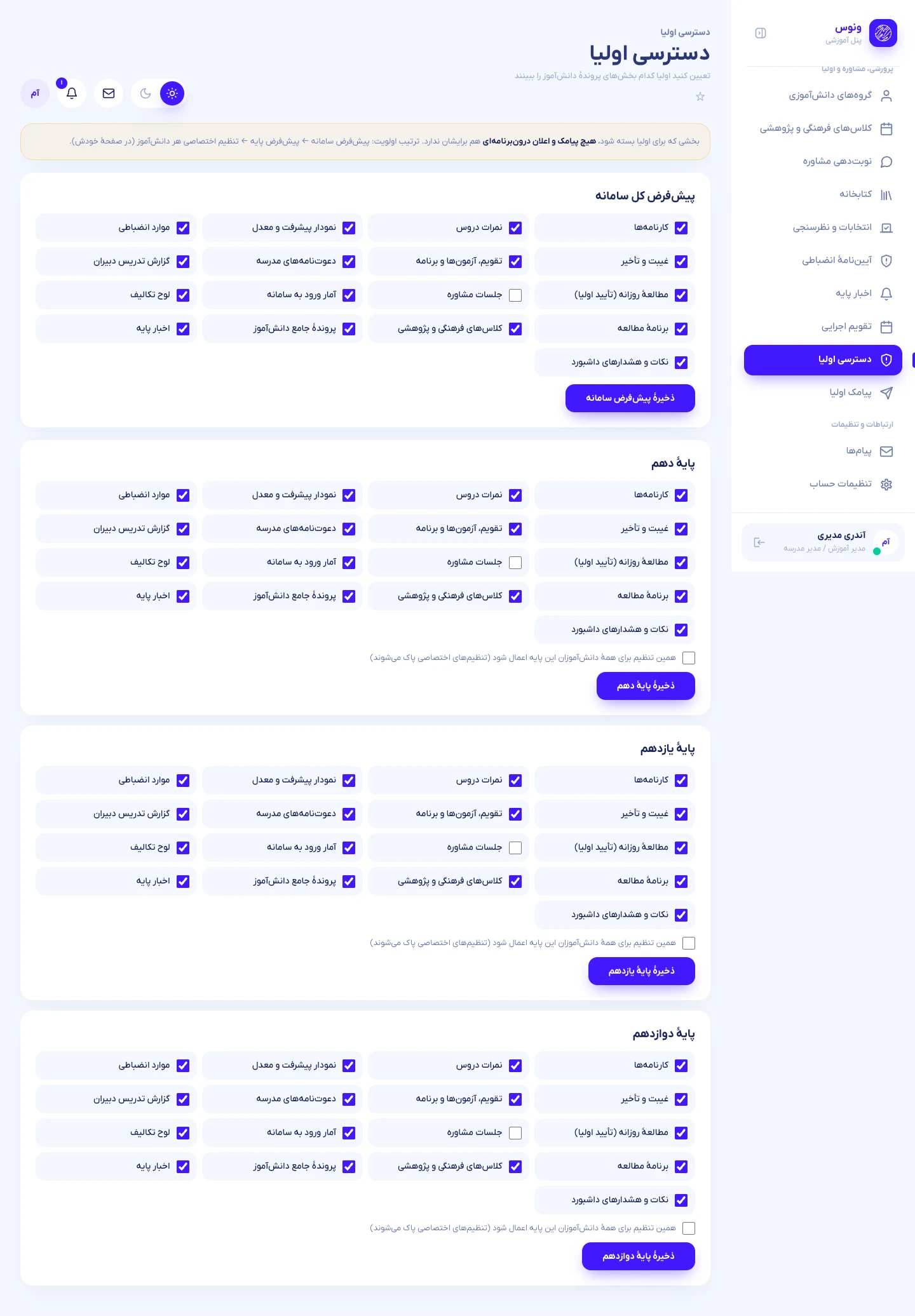
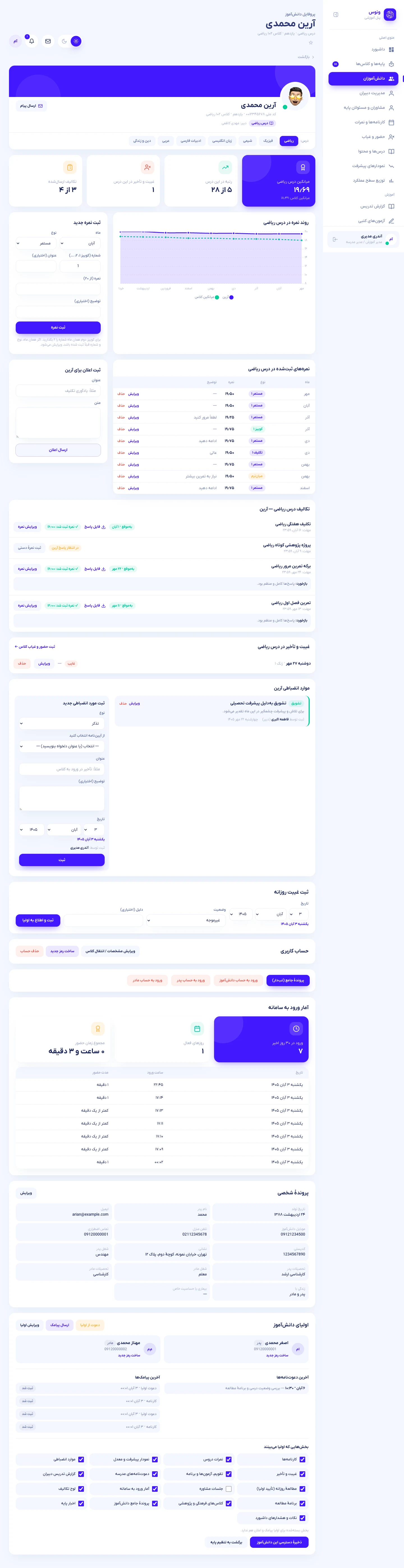
Eight sections can be shown or hidden: report cards, marks, progress charts, discipline, absences, calendar and timetable, invitations, dashboard alerts. The most specific rule wins:
- System default — Admin → Parent access (everything is visible until you change it).
- Grade default — one card per grade; “apply to every student of this grade” clears individual exceptions.
- Student exception — in the student profile; “back to grade setting” removes it.
School life: personal file, teaching reports, news and calendar
| Module | How it works |
|---|---|
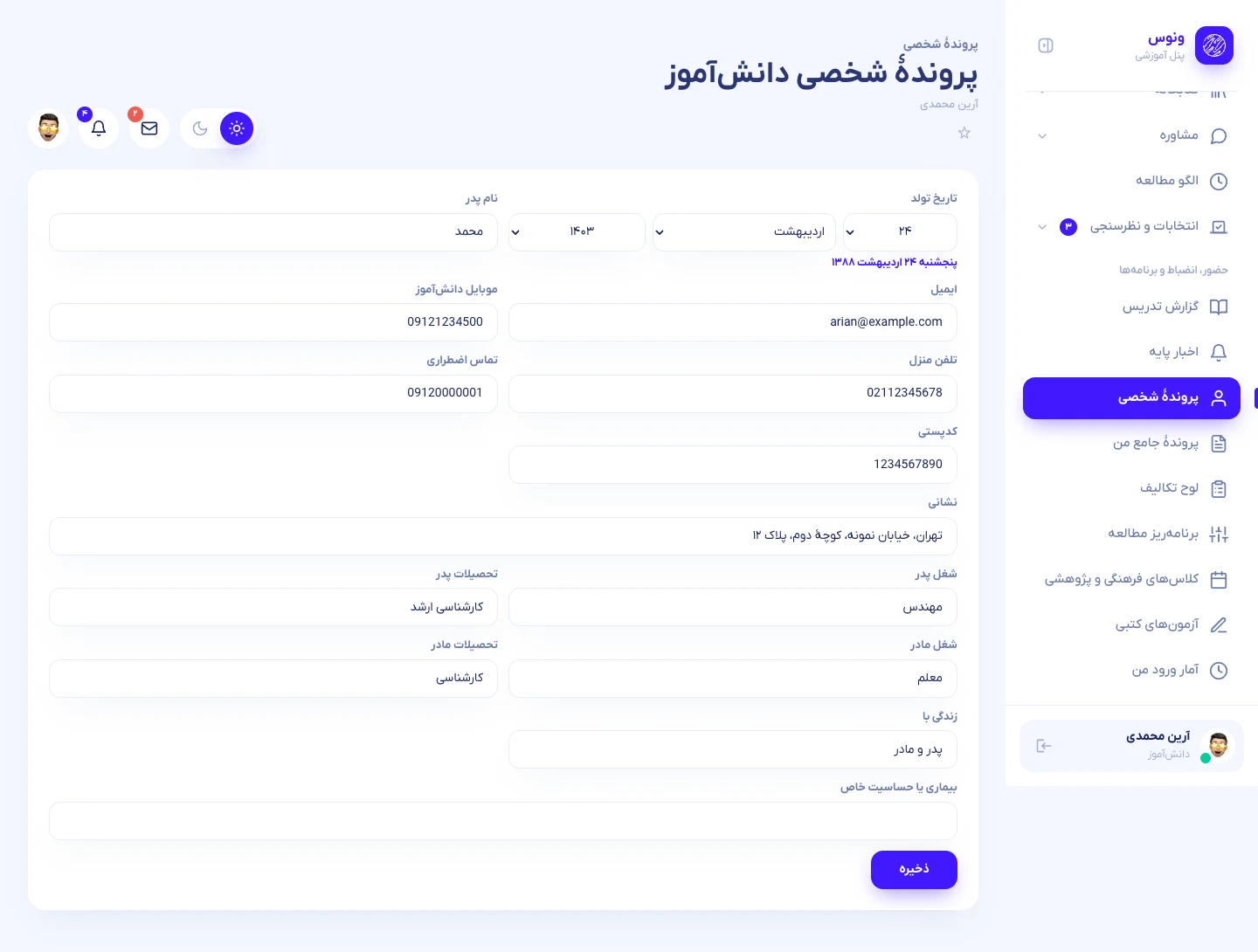
| Personal file | Birth date, father’s name, e-mail, student mobile, home and emergency phones, postal code, address, parents’ jobs and education, who the student lives with, medical notes. Admin (or a counselor allowed to manage students) edits it in the student profile; one switch lets the student and parents correct it themselves. |
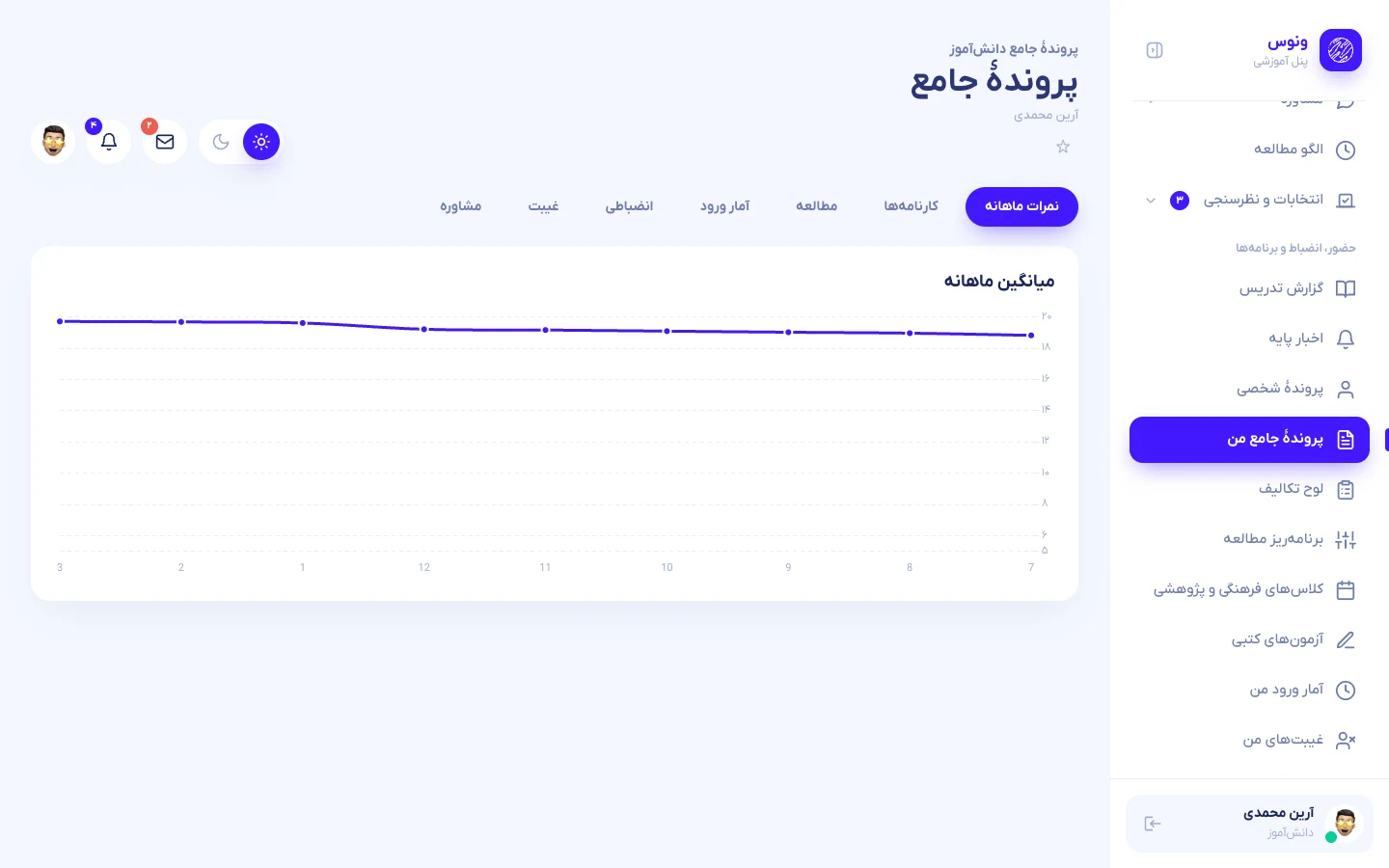
| Teaching reports | Each teacher logs the topic, details and homework of every session of their own subjects (admin: any). Students and parents read them per subject; counselors can follow their grades. Parents see them only if the “teaching reports” section is open. |
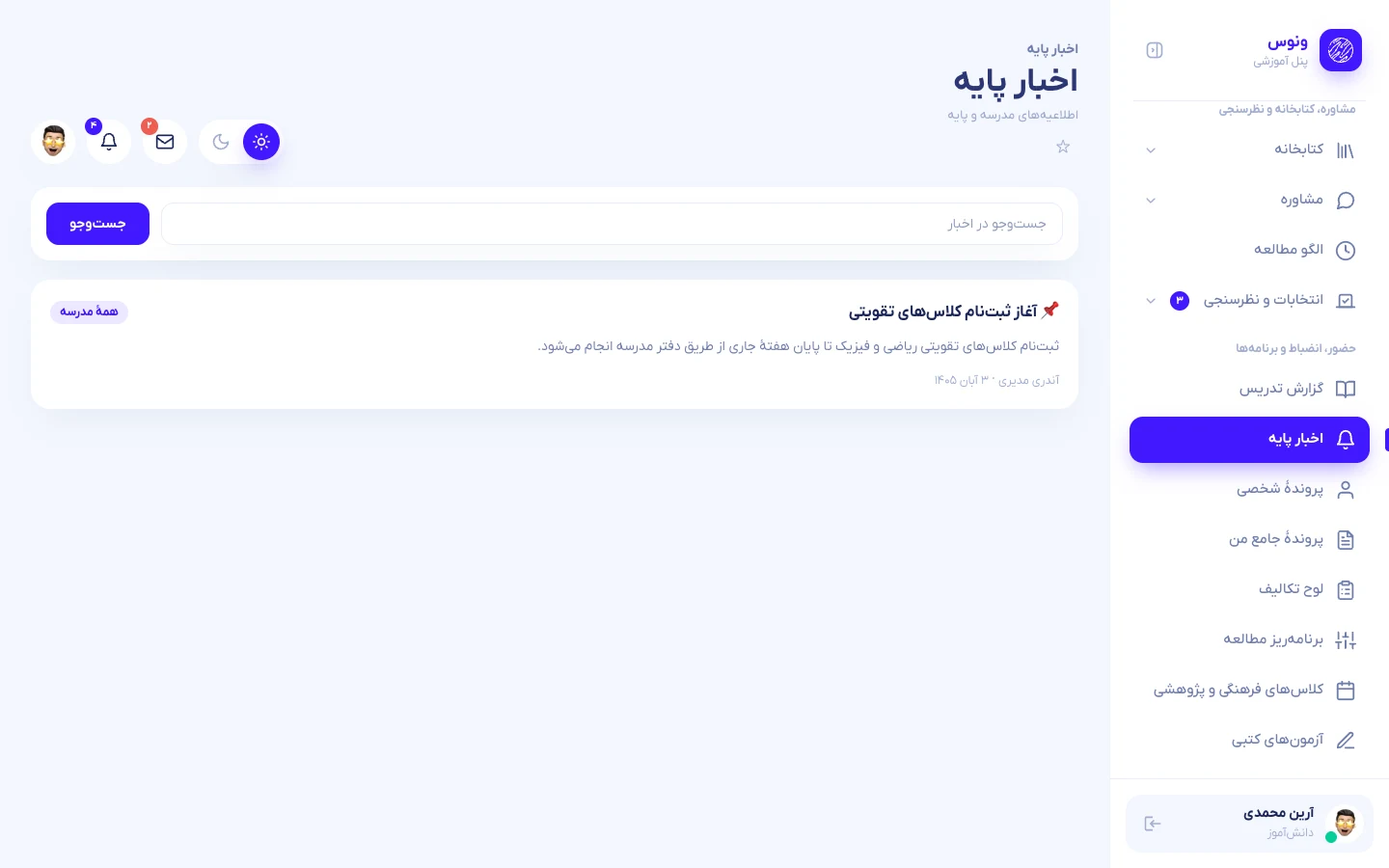
| Grade news board | News for the whole school (admin) or one grade (admin, or a counselor with the permission), with attachment, pinning, search and a download counter. |
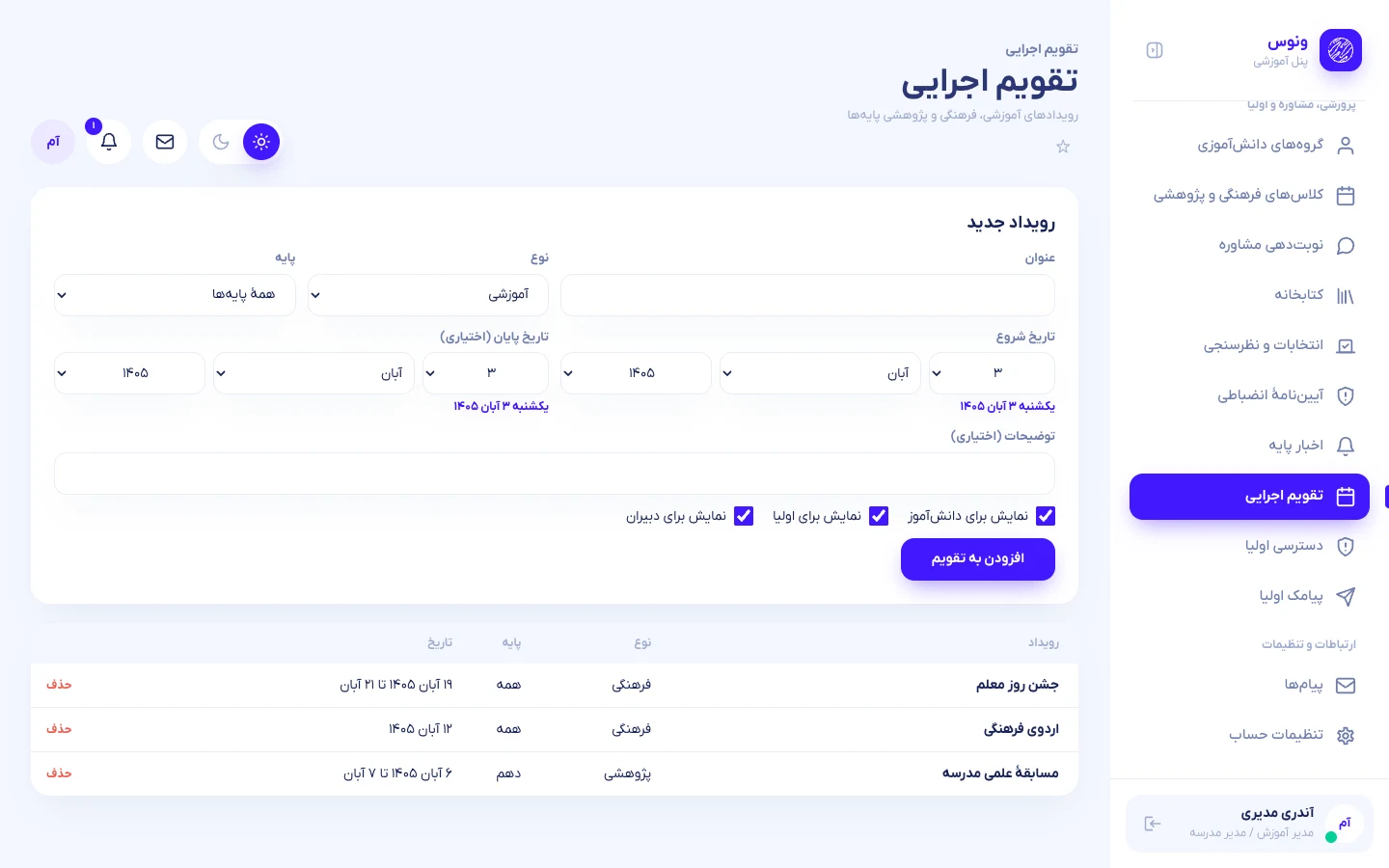
| Executive calendar | Educational, cultural, research, meeting and holiday events with start/end date, grade and audience (students, parents, teachers). They appear in the student and parent calendars. |
| Disciplinary rulebook | Admin keeps a list of ready titles by type; staff pick one in the discipline form instead of typing. |
| Daily study confirmation | Students log study time; parents confirm or reject each entry (optional note). Editing an entry resets its review. |
| Counseling appointments | Only the counselor (or admin) sets the time of a counseling session for a student of their grades — students cannot book or request. The student is notified in the app; the counselor marks the session done with a report, reschedules or cancels it. Parents see sessions only when the “counseling” section is opened for them (closed by default). |
| Sign-in statistics | Every student sign-in is recorded with date, time and time spent; shown to the student, to staff in the profile and, if the section is open, to parents. |
| Comprehensive file | One tabbed page per student — monthly marks, report cards, study, sign-ins, discipline, absences, counseling — for staff, the student and (section by section) the parents. |
| Daily absence | Whole-day absence marked justified or unjustified with a reason (admin and counselors); the family is notified honouring access levels and SMS permissions. |
| Homework board | Every assignment of the class on one page, grouped by day, sortable by deadline or creation date, with an archive. |
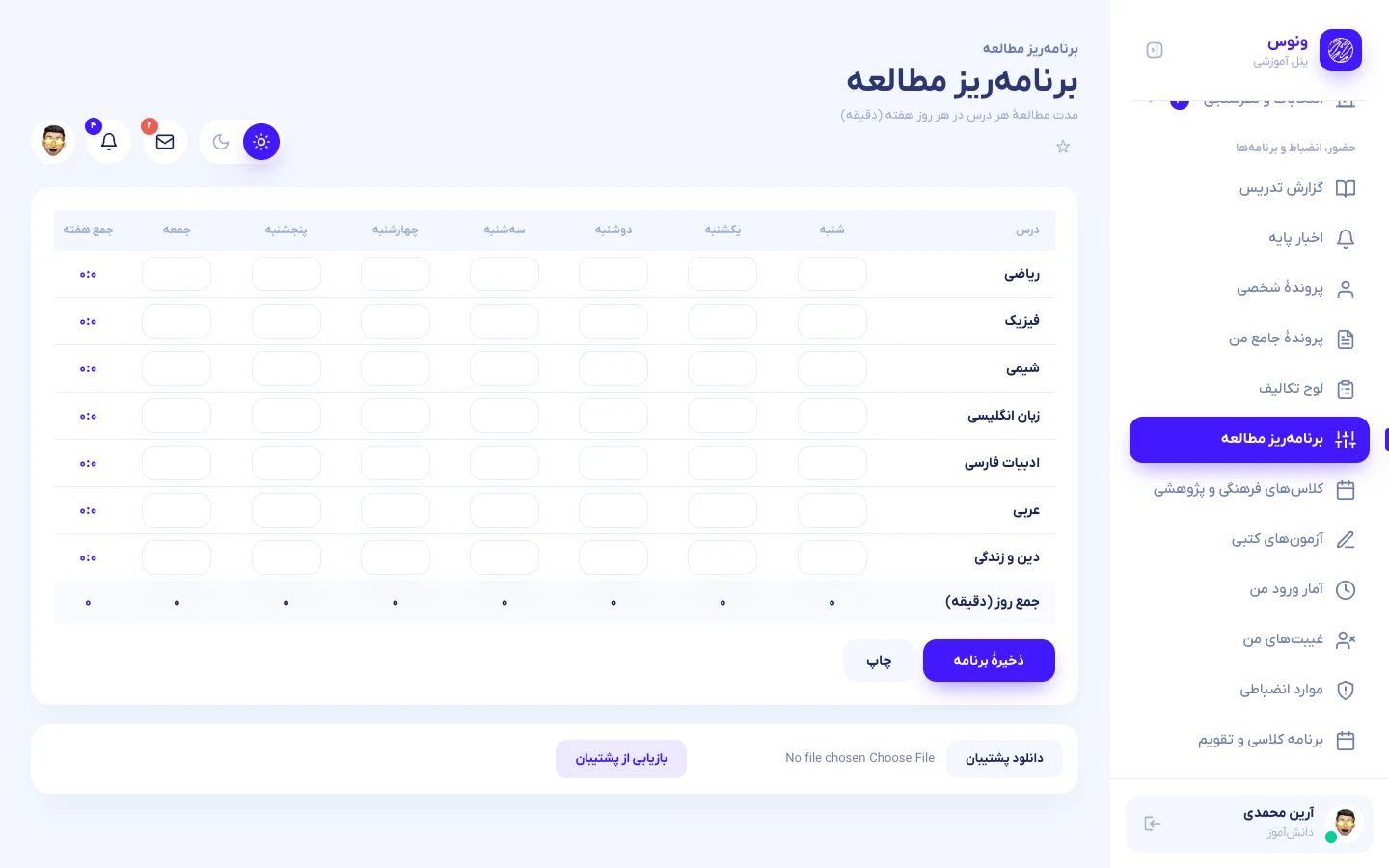
| Study planner | Weekly grid of minutes per subject and weekday, with totals, printing and JSON backup / restore. Parents can view it. |
| Cultural & research classes | Staff define classes (grade, capacity, teacher); students enrol or withdraw; staff see who enrolled. |
| Paper exams | Teachers enter marks of written exams; students see their mark, rank, class average and the top three. |
| Groups & messages | Student groups across classes; messages to a whole group, scheduled delivery, unread filter and search. |
| Live-class attendance | The “join” button records who entered a live class (first join, count). Time spent cannot be measured because the meeting runs on an external service. |
| Support sign-in | Admin (or a permitted counselor) can sign in as a student or parent — only with the actor’s own 2FA on, only inside their scope, with a red banner and a full audit log. |
| Quick access | Star any page to pin it to the header; a daily motivational sentence; switch between mobile and desktop layout on phones. |
| Library desk | Admin adds books (copies, cover), sees reservations and loans, hands books over (due in 14 days), takes them back or cancels a reservation. |
| Polls & elections | Admin creates polls, elections and evaluations with options and dates and follows live results. |
| Counseling programs | Counselors write a study program for a student, one weekday per line; the student sees it under Counseling → Programs. |
| Account housekeeping | Correct name or national code, move a student to another class, issue a new password (shown once, signs the user out everywhere) or delete an account. Deleting a student also removes parent accounts left without children; deleting a teacher keeps their courses and records. |
| Account security | Active sessions list with “sign out other devices”, and optional two-factor sign-in (TOTP, works with Google Authenticator) for staff accounts. |
SMS settings and gateways
Only the admin opens Parent SMS. Choose a gateway, fill its credentials (secrets are stored encrypted), then for every event enter the pattern code approved in the gateway panel; the page shows the exact order of the variables to use when creating the pattern. A text fallback is used for gateways that accept plain text. Use Send test before enabling events.
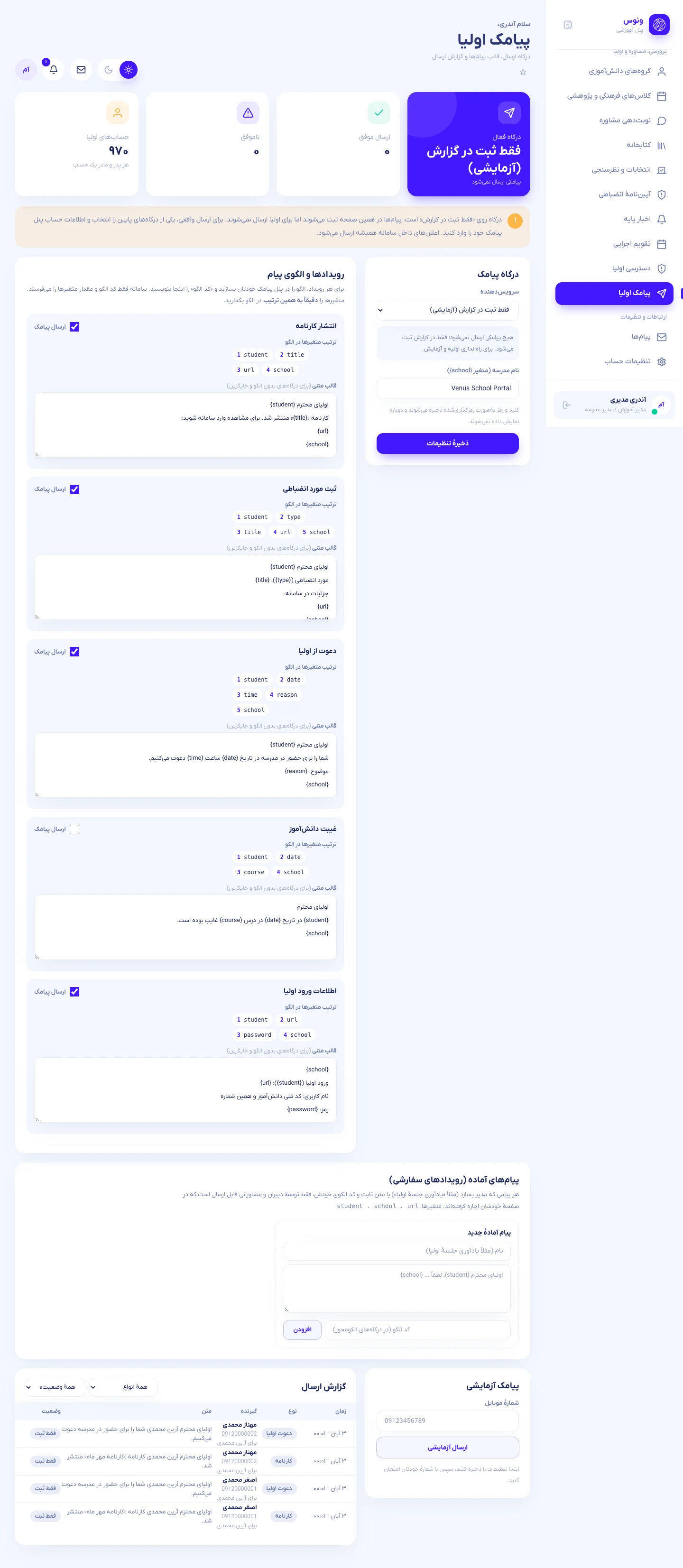
| Gateway | Pattern | Plain text | Needs |
|---|---|---|---|
| Kavenegar | ✓ | ✓ | API key, line |
| SMS.ir | ✓ | ✓ | API key, line |
| Melipayamak / Farapayamak | ✓ | ✓ | Username, password or API key, line |
| Ghasedak | ✓ | — | API key |
| IPPanel (Edge) | ✓ | — | Token, line with country code |
| Asanak | ✓ | ✓ | Username, password, line |
| Sabanovin | — | ✓ | API key, line |
| Custom HTTP | ✓ | ✓ | URL, method, headers and body with {mobile} {pattern} {text} and variable placeholders |
| Log only | Nothing is sent; every message is written to the log (demo mode). | ||
| Event | Variables (in this order) |
|---|---|
| Report card published | student, title, url, school |
| Discipline record | student, type, title, url, school |
| Invitation to school | student, date, time, reason, school |
| Absence | student, date, course, school |
| Parent login details | student, url, password, school |
The admin can also define ready-made messages (own text or pattern code). They appear in staff members’ permission lists and in the student profile as “Ready message”.
Who may send which SMS
- Teachers and counselors never type free text. They send only the built-in events and the ready-made messages the admin allowed for that person; free text is admin-only.
- In the permission matrix the admin can narrow an SMS permission, e.g. report-card SMS for continuous marks only, or discipline SMS for warnings only. A counselor can be limited to discipline SMS.
- Every recipient is limited to students in the sender’s own classes or grades; a daily cap protects against mistakes.
SMS setup step by step
Venus has no SMS line of its own; it connects to your account at an SMS provider (Kavenegar, SMS.ir…). Iranian service messages are sent through a pattern (template): you write the text once in the provider's panel and get it approved; Venus then sends only the pattern code and the variable values (name, date…).
Open an account and buy credit
Pick a provider from the table below and take the connection details (API key, or user name/password, and the sender line) from its panel.
Create one pattern per event
In the provider's “patterns/templates” area write the text with variables and wait for approval (hours to a day). The order of the variables matters (table below). Example for the parent invitation: اولیای محترم %student% شما را برای تاریخ %date% ساعت %time% به مدرسه دعوت میکنیم. موضوع: %reason% - %school%
Enter the gateway in Venus
Administrator → Parent SMS (پیامک اولیا) → choose the gateway, enter the credentials → save.
Enter the pattern code for every event
On the same page, beside each event (report-card published, absence, discipline item, parent invitation, login details), type the pattern code/name and switch the event on.
Send a test
Press Test send with your own number. If it arrives, you are done; if not, the Send log (گزارش ارسال) shows why.
What each gateway needs
| Gateway | What to take from the panel | What “pattern code” means |
|---|---|---|
| Kavenegar | API key and sender line | template name |
| SMS.ir | API key and line | templateId; variable names must match Venus exactly |
| Melipayamak / Farapayamak | user name and password (or API key), line | bodyId; variables by position only |
| Ghasedak | API key | template name; variable names must match |
| IPPanel | token and line (with country code) | pattern code; variable names must match |
| Asanak | user name, password, line | template_id (number) |
| Sabanovin | API key and line | none; free text built from the “text template” |
| Custom HTTP | URL, method and body from the provider's docs | the {pattern} placeholder |
Variable order per event
| Event | Variables (in this order) |
|---|---|
| Report card published | student, title, url, school |
| Discipline item | student, type, title, url, school |
| Parent invitation | student, date, time, reason, school |
| Absence | student, date, course, school |
| Parent login details | student, url, password, school |
| Test | school |
When a message does not arrive
| What the log says | Usual cause |
|---|---|
| skipped | The event is off, the pattern code is empty, the parent has no mobile, or the section is closed for that parent (then nothing is sent, by design). |
| failed | No credit, wrong key/password, pattern not yet approved, or the number/order of variables does not match the pattern. The gateway's error text is shown beside the row. |
| all “sent” but nothing arrives | A problem with the line or pattern at the operator; contact the provider's support. |
Glossary
| Term | Meaning |
|---|---|
| Grade (پایه) | A school year such as 10th, 11th, 12th; each grade has several classes. |
| Grade lead / counselor | A staff member responsible for one or more grades, who sees only those. |
| Subject (درس) | One course in one class with one teacher — “Math in class 101” is a subject. |
| Gradebook | The mark table of one subject. |
| Official report card | The report card the administrator builds and publishes; printable A4. |
| Pattern / template | Fixed SMS text approved in the provider's panel; only variables change. |
| Parent access level | Which sections parents see, in three layers: school → grade → student. |
| 2FA | A six-digit temporary code from an authenticator app (Google Authenticator…) in addition to the password. |
| Support login | The administrator signing in as another user to fix a problem; shown with a red bar and fully logged. |
| Captcha | The number in the picture on the login page that stops automatic password guessing. |
| CSV | A plain-text table file that Excel opens and saves. |
| cPanel | The hosting control panel where you upload files. |
| SQLite / MySQL | The two supported databases; SQLite needs no separate database setup. |
Frequently asked questions
A student or parent forgot the password. What now?
The administrator opens the student's file and creates a new password (same for a parent, or a counselor with the reset parent password permission). The new password is shown once.
A parent has two children at the school — two accounts?
No. Accounts are keyed by mobile number; registering the same number for the second child links it to the same account and the parent switches between children.
A student moved to another class — what happens to the marks?
Earlier marks stay with the old subjects; the new class's subjects start empty. Move the student from their file.
Can I run several schools from one install?
One install serves one school. Install each school in its own folder/domain.
Can parents change anything?
No. Parent accounts are read-only; they can only confirm their child's daily study and change their own password.
Can a teacher send any SMS?
No. Teachers and counselors send only the templates defined by the administrator, and only if the administrator allowed it. Free text is administrator-only.
Can students book counseling themselves?
No. Only the counselor/administrator schedules appointments; the student sees them.
If I close a section for parents, is the SMS still sent?
No. A closed section means no page, no SMS and no in-app notification.
How do I back up?
Copy two things: the database (database/database.sqlite or a MySQL dump) and the storage/app/public folder. See Updating.
Can I install Venus in a sub-folder (example.com/school)?
Yes. Extract everything into that folder, set APP_URL=https://example.com/school in .env and keep the .htaccess in the folder as shipped; the application detects its base path itself.
The site shows a 500 error after upload.
Set PHP to 8.2 or newer and check that storage and bootstrap/cache are writable; see Troubleshooting.
Are the font and sample images licensed?
Sample names and marks are fictional. Check the IRANYekanX font licence for your own use (see Credits and licenses).
May I resell or redistribute the script?
The standard licence covers one install on one domain; the exact text is in the bundled LICENSE.txt.
Configuration
All settings live in the .env file in the project root. The web installer writes it for you.
| Key | Meaning |
|---|---|
| APP_NAME | School / site name shown in titles. |
| APP_URL | Full site address, for example https://school.example.com. |
| APP_ENV / APP_DEBUG | production and false on a live site. |
| APP_KEY | Encryption key. Generated by the installer. Never change it on a live site — everyone would be signed out. |
| APP_DEMO | true shows the demo-accounts box on the login page. Keep false for real schools. |
| APP_LOCALE | fa (default). Validation messages use lang/fa. |
| APP_TIMEZONE | Asia/Tehran by default. |
| DB_* | Database connection (see MySQL). |
| SESSION_LIFETIME | Minutes before an inactive session expires (default 120). |
| LOG_LEVEL | error in production. Logs are in storage/logs/laravel.log. |
Upload limits
The application accepts attachments up to 5 MB (messages), 10 MB (assignments and submissions) and 50 MB (learning content). Your PHP limits must be at least as large: set upload_max_filesize and post_max_size (cPanel: Select PHP Version → Options).
Caching
If you edit views or configuration on the server, clear the caches: php artisan view:clear and php artisan config:clear. On hosts without a terminal, delete the files inside storage/framework/views.
Customization
Brand colours and themes
All colours are semantic design tokens in resources/css/app.css. Change --color-brand in the @theme block for the light theme and in :root.dark for the dark theme.
@theme {
  --color-brand: #4318ff;   /* primary colour */
  --color-canvas: #f4f7fe;  /* page background */
  --color-surface: #ffffff; /* cards */
  --color-mint: #05cd99;    /* positive */
  --color-rose: #ee5d50;    /* negative */
}
:root.dark { --color-brand: #7551ff; --color-canvas: #0b1437; --color-surface: #111c44; }
Logo
The mark is the single SVG resources/svg/logo_mark.svg (drawn with currentColor, so it follows the theme). Replace it with your own SVG. The favicon and PWA icon sit in public/.
Font
The interface uses the IRANYekanX variable font from resources/fonts, declared in resources/css/app.css. To use another font, add the files and edit the @font-face block and the --font-sans token.
Texts and translations
Interface texts are written directly in the Blade views under resources/views (Persian). Validation messages are in lang/fa/validation.php, including the field names under attributes. Navigation labels are in app/Support/Navigation.php.
Rebuilding the design
The compiled assets are already in public/build. After changing CSS, JavaScript or the Tailwind classes in a view, rebuild:
npm install
npm run build
Upload the new public/build folder to the server.
Adding a module
- Create a controller in
app/Http/Controllersand add its routes inroutes/web.phpinside the proper role group. - Create a view in
resources/viewsusing<x-layouts.app>and<x-page>— you get the sidebar, header, theme and mobile shell for free. - Add the menu entry in
app/Support/Navigation.php. - Reuse the components
x-stat,x-badge,x-empty,x-chart,x-tabsandx-jdate.
Architecture
Folder structure
| Path | Purpose |
|---|---|
| app/Http/Controllers | One controller per module (Dashboard, Course, Grade, ReportCard, Assignment, Exam, Attendance, Library, Counseling …) plus Staff* and admin controllers. |
| app/Services/AcademicAnalytics.php | The single source of truth for GPA, ranks, distribution and the dashboard payload. Dashboards, report cards and charts all use it, so numbers always agree. |
| app/Support | Persian (digits, Jalali helpers), Navigation (role-aware menu), Captcha, Icons. |
| app/Http/Middleware | RoleMiddleware (role:admin,teacher) and NormalizeDigits (Persian digits to Latin in numeric fields). |
| app/Console/Commands | venus:install, venus:reset-password. |
| resources/views | Blade views and components. components/layouts/app.blade.php is the application shell. |
| resources/js, resources/css | Alpine.js store and components, Chart.js wrapper, Tailwind CSS v4 tokens. |
| database/migrations, seeders | Schema and the demo school seeder. |
| public/install.php | Web installer (delete after use). |
| tests/Feature | End-to-end tests (313 assertions). |
How marks, GPA and ranks are calculated
- Every grade is normalised to the 20-point scale:
score × 20 / max_score. - A student’s subject average is the mean of their grades in that subject.
- The GPA is the average of the subject averages weighted by each subject’s unit weight.
- Class rank and grade rank compare GPAs inside the class / grade level. For a teacher, “GPA” means the average of the active subject only.
- Students with no grades have no GPA: they show “—” and are excluded from distributions.
Role scoping
Routes are grouped by role: middleware. Inside the staff area, a teacher is further restricted by the courses assigned to them: lists, pickers, student profiles, exams and every POST are checked against those courses, returning 403 otherwise.
Dates
Dates are stored as Gregorian ISO values and displayed in Jalali with Persian digits. The x-jdate / x-datetime components render a Jalali picker that submits a Gregorian value. The helpers jd(), jtime() and fa() format dates and numbers in views.
Database
| Table | Contents |
|---|---|
| users | All accounts: national code, mobile, name, role (admin, teacher, counselor, student, parent), class, creator, avatar, settings. |
| student_parents, parent_invitations | Father/mother links (a parent can have several children) and school invitations. |
| settings, sms_logs, sms_custom_events | Encrypted gateway settings, per-event patterns, every SMS (sent, failed, logged, skipped) and the admin’s ready-made messages. |
| student_profiles, teaching_reports, news_posts, school_events, discipline_rules | Personal file, teaching log, news board, executive calendar and the disciplinary rulebook. |
| staff_permissions, counselor_grades | Per-person permission matrix with scopes, and the grades a counselor leads. |
| grade_parent_access, student_parent_access | Parent-visible sections per grade and per student (stored only where they differ from the default). |
| grade_levels, classrooms | Grades (10–12) and classes with field and capacity. |
| courses, course_periods | A subject in a class (teacher, unit weight, syllabus) and its timetable slots (weekday 0 = Saturday, period). |
| grades, report_cards | Marks per student, subject, month, type and sequence; official report cards with publish state. |
| assignments, assignment_submissions | Assignments and student answers with score, feedback, lateness. |
| educational_contents, online_classes | Learning material and live-class sessions. |
| exams, exam_questions, exam_attempts, exam_answers | Online exams, questions, attempts and answers with points. |
| attendances | Absence / late / excused records by date and period. |
| discipline_records | Warnings, praise, delays with recorder and date. |
| books, book_loans | School library and reservations. |
| counseling_programs, counseling_sessions, study_patterns | Counseling and study logs. |
| polls, poll_options, poll_votes | Elections and surveys. |
| internal_messages, app_notifications | Messages and notifications. |
| sessions, cache, jobs | Framework tables. |
database/database.sqlite and the folder storage/app/public (uploads). With MySQL export the database from phpMyAdmin and copy storage/app/public.Security
- Authentication — national code + password + a single-use image captcha. Passwords are hashed (bcrypt). Sessions are regenerated at login.
- Brute-force protection — five failed attempts per minute for the same national code and IP lock that login for a minute.
- Authorisation — server-side role middleware plus per-course ownership checks for teachers; students can only open their own class’s courses, report cards and files.
- CSRF protection on every form; output escaped by Blade.
- Uploads — extension and size validated; stored outside the code; downloads go through authorised routes.
- Hardening —
.env,vendor,storage,appand the database file are blocked from the web by the root.htaccess;APP_DEBUG=falsehides stack traces.
Recommended checklist before going live
- Use HTTPS and enable Force HTTPS redirect in your control panel.
- Delete
public/install.phpand make sureAPP_DEMO=false. - Do not keep the demo data or demo passwords.
- Keep regular backups of the database and
storage/app/public. - Keep PHP updated.
Troubleshooting
First look at storage/logs/laravel.log — the last lines name the exact problem. Temporarily setting APP_DEBUG=true shows the error on screen; set it back to false immediately.
| Symptom | Cause and fix |
|---|---|
| The installer says a folder is not writable | Give storage, bootstrap/cache and database permission 775 (cPanel File Manager → Permissions). |
| 500 error on every page | Missing or wrong .env / APP_KEY, wrong PHP version, or unwritable storage. Read the log. |
| “No application encryption key” | Run the web installer, or php artisan key:generate. |
| The captcha image is missing | Enable the gd PHP extension. |
| Page looks unstyled | public/build was not uploaded or APP_URL is wrong. |
| 404 on every page except the home page | The .htaccess files are missing or mod_rewrite is off. Hidden files are not shown in some file managers — enable “show hidden files”. |
| One page returns 500 after an update | Clear compiled views: delete the files in storage/framework/views. |
| “Page expired” (419) | The session expired or cookies are blocked. Reload and try again. |
| Files larger than a few MB fail to upload | Raise upload_max_filesize and post_max_size in PHP. |
| The administrator forgot the password | Run php artisan venus:reset-password 1234567890, or sign in as another administrator and reset it from the teacher/student page. |
| I want to reinstall | Delete storage/installed.lock, .env and database/database.sqlite (or empty the MySQL database) and open /install.php again. |
| Dates look wrong by a few hours | Set APP_TIMEZONE in .env. |
Updating
- Back up
.env, the database andstorage/app/public. - Upload the new files over the old ones, except
.env,database/*.sqliteandstorage/. - Run
php artisan migrate --force(or open the site — release notes tell you when a migration is needed) andphp artisan view:clear.
Credits and licenses
| Component | License |
|---|---|
| Laravel Framework | MIT |
| Tailwind CSS | MIT |
| Alpine.js | MIT |
| Chart.js | MIT |
| morilog/jalali | MIT |
| IRANYekanX font | Third-party font — see the note in Font |
Sample data (names, grades, books) is fictional and generated for demonstration. The default avatar and any sample photos are placeholders and may be replaced.
Changelog
Version 1.0.0
- First release: administrator, teacher and student portals, 20+ modules, dark/light themes, mobile shell.
- Web installer,
venus:installandvenus:reset-password. - Weekly timetable builder with teacher clash detection; teachers with several subjects; role-scoped analytics.
- Gradebook with several quizzes per month; attendance by scheduled period; online exams with automatic and manual grading.
- Login throttling, Persian validation messages, Jalali date pickers, Persian-digit input.
Version 1.1.0
- Parent portal with mobile-based accounts (parent mobile + password only), progress/regression dashboard and “what you should know” alerts.
- Counselor / grade-lead role with a per-person permission matrix; counselors can register students and parents when allowed.
- Pattern-based SMS with eight Iranian gateways and a custom HTTP gateway; per-staff SMS permissions; ready-made messages; SMS log.
- Parent access levels at system, grade and student level; hidden sections send no SMS or notification.
- Parent password reset by admin or permitted counselor; creator recorded on registered students.
- Student personal file, teaching reports, grade news board, executive calendar, disciplinary rulebook, parent confirmation of study logs.
- Counselor-scheduled counseling appointments (no student self-booking) and student sign-in statistics.
- Comprehensive tabbed file, daily absence, homework board, study planner, cultural/research classes, paper exams, student groups, scheduled messages, live-class join log, support sign-in with audit log, quick access pins.
- Library desk, poll management, counseling programs, account housekeeping (edit, move class, new password, delete); final QA from a clean install.
- Active sessions list and optional two-factor sign-in (TOTP) for staff.
- School profile (name, logo, academic year) in the menu, report card and SMS; bulk import of students and parents from CSV with a per-row error report and a one-time password list; CSV export of the student list.
- Beginner step-by-step guides: quick start for every role, school-year calendar, online exams, SMS setup, glossary and FAQ.
Support
Before contacting support please read Troubleshooting and include the last lines of storage/logs/laravel.log, your PHP version and a description (or screenshot) of the problem. Thank you for choosing Venus.